
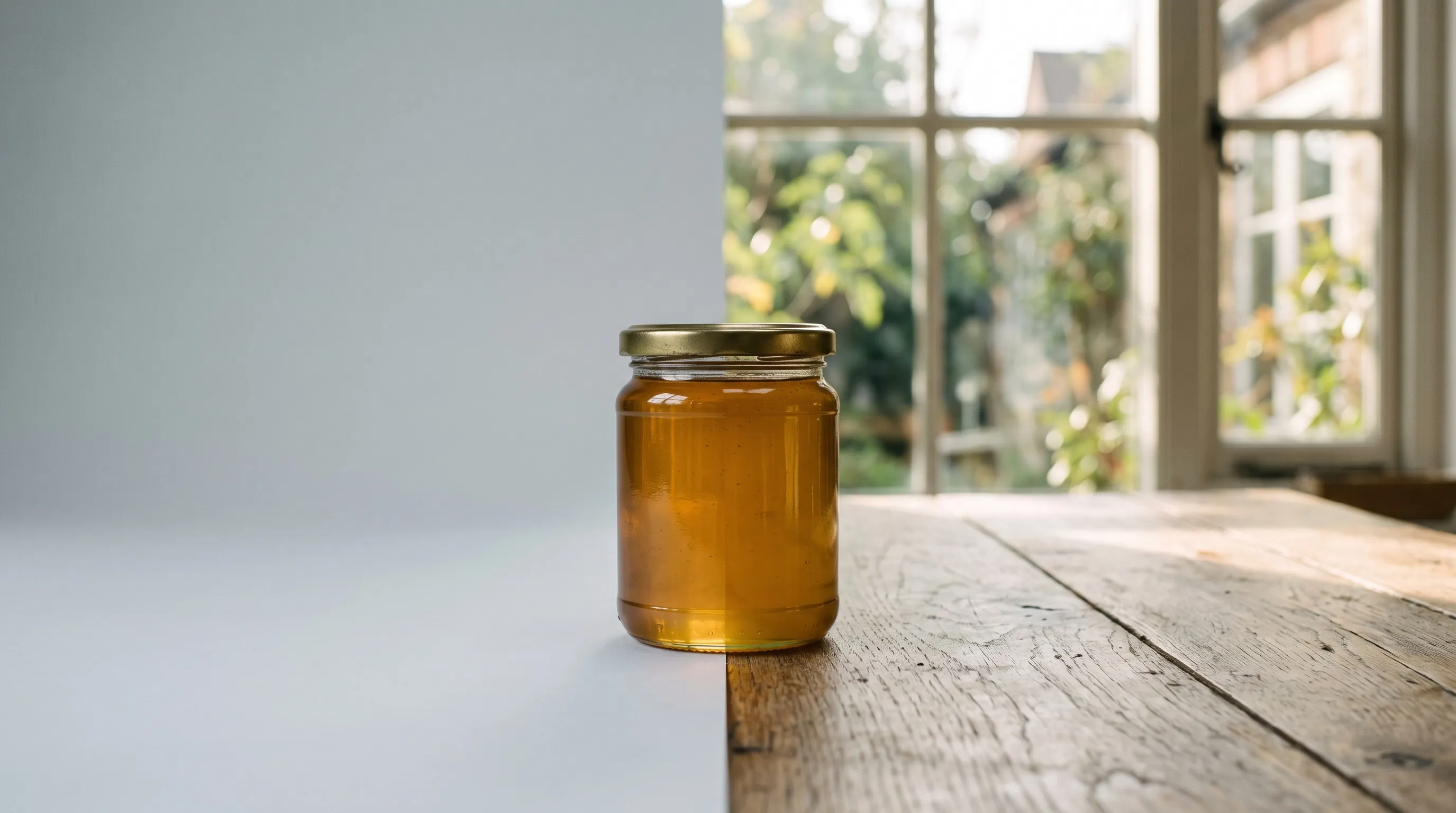
Only background removal changes a product photo's background without changing the product. A background remover, such as Photoshop's Remove Background, Canva's Background Remover, Adobe Express or Photoroom's AI Backgrounds, traces the product's outline and deletes everything around it. It then places the untouched product on a new background. That cut-out product is called a cutout. Some of these tools also generate the new scene to fit the product's existing light and angle. To light the product the way the scene would, or to show it from the scene's angle, a tool has to relight it or make a new photo of it. Both change the product's pixels, so check those images against the real product at full zoom.
Pick the method by the background you need. A flat color has no light for the product to clash with, so background removal is all a white background needs. For a lifestyle scene with the product untouched, generate the scene around a cutout; it works when the scene suits the angle and light of your photo. When the product should look photographed in the scene, use a tool that makes a new photo of it there, then check every image. For a whole catalog, use a tool that saves the product and the background, so every new image starts from the same setup.
| What you need | Best method | Tools that do it |
|---|---|---|
| A white or plain-color background, such as a marketplace main image | Remove the background and place the product on the color | Photoshop, Canva, Adobe Express, Pixelcut, Photoroom |
| A lifestyle scene with the product untouched | A cutout with a scene generated to fit its light and angle | Photoshop Generate Background, Photoroom AI Backgrounds, Pixelcut |
| A scene the product looks photographed in: a table, a shelf, a street | A new photo of the product in the scene, or a relit cutout, then a check at full zoom | Nightjar, Photoroom AI Scenes, Photoshop Harmonize, Claid, Pebblely |
| The same surface behind every product in a catalog | A saved background reused for every product | Nightjar Backdrops, Claid templates, Photoroom batch AI Backgrounds |
Why does AI change my product when I only ask for a new background?
Generative image tools, such as ChatGPT, Gemini and the scene tools below, change the product because a request for a new background makes a new image. The model draws the whole picture again, product included, using your photo as a reference. Writing "keep the product exactly as it is" in the request is a strong hint the model weighs, not a lock. OpenAI's image guide says so plainly about its own masks: "The model uses the mask as guidance, but may not follow its exact shape with complete precision."
Look at the lettering first, because the model has to write every letter again. The same OpenAI guide says its model "can still struggle with precise text placement and clarity". Why AI product photos don't match the real product covers the causes in depth.
Cutout, fitted scene or new photo: three ways to change a product photo background
There are three ways to put a product on a new background, and each gives something up.
A cutout comes from background removal: the tool traces the product's outline, deletes everything around it and places the untouched product on a new background. Photoshop's Remove Background "isolates the subject and creates a transparent background or a masked layer", and Photoroom's AI Backgrounds "will remove the background from the source image so that it's ready for a new AI background". Because the product's pixels never change, its labels, colors and shape stay exactly as photographed. Three things go wrong instead:
- The old light comes along. A shoe shot under cool studio light stays cool on a warm sunset street, and the eye reads the mismatch as a composite.
- The old camera angle comes along. A tin photographed from above still looks down at its lid when it is placed on a shelf you see from the front.
- Whatever touched the product can come along too. Grass, fur or a sliver of the old backdrop along the edge gives a cutout away, and a part of the product the original photo hid stays missing. Shooting on a plain background makes the cutout cleaner, as the answer on green screens and white backgrounds explains.
A fitted scene answers the light problem from the other side: the tool generates the new background to suit the untouched product. Photoshop's Generate Background makes "generated content that matches the lighting, shadows, and perspective of the subject", and Photoroom's AI Backgrounds can "tailor the background to better suit the lighting and shadows of the product". The product stays exactly as photographed, so the scene has to suit the angle and light your photo was taken in.
A new photo puts the product in the setting you describe. The light, shadows, reflections and even the camera angle match the scene, so the result looks photographed there. The product is drawn again, so check it against the real item.
Some tools start from the cutout and relight it. Photoroom's AI Scenes relights the product and "only makes minor changes to the foreground for added realism". Adobe says Harmonize "adjusts the subject's lighting, shadows, colors, and reflections" and that the added element "will be recreated". Canva's BG Generator offers Balanced relight and Maximum relight. Relighting a product changes its pixels, so these results need the same check as any AI scene.
Which background changers keep the product unchanged?
This is what each tool does to the product. Prices are in US dollars, checked in 2026.
| Tool | What happens to the product | Price |
|---|---|---|
| Adobe Photoshop | Kept with Remove Background and Generate Background; "recreated" with Harmonize | $22.99 a month, annual plan |
| Adobe Express | Kept: the cutout goes on a stock, uploaded or generated background | Free; Premium $9.99 a month |
| Canva | Kept by Background Remover; relit if you pick a BG Generator relight option | Remover on paid plans; Pro $144 a year |
| Photoroom | Kept with AI Backgrounds; relit in AI Scenes; changed in Product Staging; every image checked against your photo | Pro $12.99 a month |
| Claid | Precise mode keeps it where you placed it; the product page says details stay untouched | Essentials $15 a month; 50 free credits |
| Pixelcut | Kept with Change Background; Product Studio also offers new angles, which only a redraw can make | Free removal; Pro $10 a month |
| Pebblely | Drawn again: label text is passed to the AI "so it knows exactly what to write" | Lite $9 a month; no free plan |
| Nightjar | A new photo, built to keep the product true to the original: every image is checked, and any that misrepresent the product are retried at no cost | 6 free images, no card; Studio $25 a month |
Two things stand out. Every tool that keeps the product untouched starts from a cutout, so the product keeps the old photo's light and angle even when the scene is generated to fit it. Every tool that relights the product or shows it from a new angle changes its pixels to some degree.
remove.bg, which many lists still name, closes its standalone website on 1 December 2026, and its background removal moves to Canva, which owns it.
Which tool should you use to change a product photo background?
Pick the tool by the background you need and by how much work each image is worth.
- For a white or plain-color background, use background removal. The product stays pixel for pixel as photographed. Adobe Express and Pixelcut remove a background for free, Canva and Photoroom include it in their paid plans, and Photoshop gives you a mask to refine by hand. Amazon's own seller-forum guidance for 2026 asks for a "Pure white (RGB 255, 255, 255)" main image where the product fills 85% to 100% of the frame; the Amazon guide covers the rest. When the original is a phone shot rather than a studio photo, a cutout carries its light and angle onto the white too. Nightjar's Color setting makes a new studio shot of the product on white or a brand color, with the Framing and Shadow you pick.
- For a lifestyle scene with the product untouched, generate the scene around a cutout. Photoshop's Generate Background, Photoroom's AI Backgrounds and Pixelcut fit the new background to the product's light. The scene has to suit the angle your photo was taken from.
- For a scene the product looks photographed in, make a new photo of it there, then check every image. Nightjar makes that new photo, lit by the scene and shot from its angle, for one image or a whole catalog, and the three reasons below keep it true to the original. If you already edit in Photoroom, AI Scenes relights a cutout to match the scene. In Photoshop, Harmonize relights a layer you place by hand.
- For many products on the same background, save the background once. Claid's templates and Photoroom's batch AI Backgrounds place each product on the same background. In Nightjar a Backdrop is the exact surface a product sits on, saved once and reused, and each product gets a new photo on it, lit by the scene, so the tenth product sits on the same marble as the first. Creating a reusable Background shows how.
Nightjar makes a new photo of the product in the scene, and three things in how it works keep that photo true to the original:
- It starts from the product, not from one photo. A saved Product holds several photos, a factual description and the real dimensions, and every new image of it starts from the Product, so the model sees more than one view of the item and knows its real size.
- It picks the model for the shot. Nightjar has a sophisticated routing system that always picks the best AI image model for the task at hand, with prompts tuned for each model. Every model is best at some shots and weaker at others, so sending each shot to the model that is best at it gives better results than any one model used on its own, as in ChatGPT or Gemini.
- It checks every image. Nightjar is built to keep your product true to the original: it automatically looks at every generated image and retries the ones that misrepresent the product, at no cost to you.
How to change a product photo background in Nightjar
Nightjar makes a new photo of the product in the setting you choose, starting from the product's own photos.
- Open Create, choose Product Photography and Product only.
- Add the product. Pick a saved Product (several photos, a factual description and its real dimensions) or upload a photo. Include a sharp close-up of any label: print that is soft in the original can't come back sharp.
- Choose the setting. Pick Scene for a saved Background (a Backdrop for the same surface every time, a Location for a place), Color for a white or brand-color background, or leave it on Auto and describe the setting in Custom Directions.
- Set the size and create. Choose 2K or 4K and the aspect ratio the image is for, then create.
- Check the product at full zoom against the real item, starting with the smallest print.
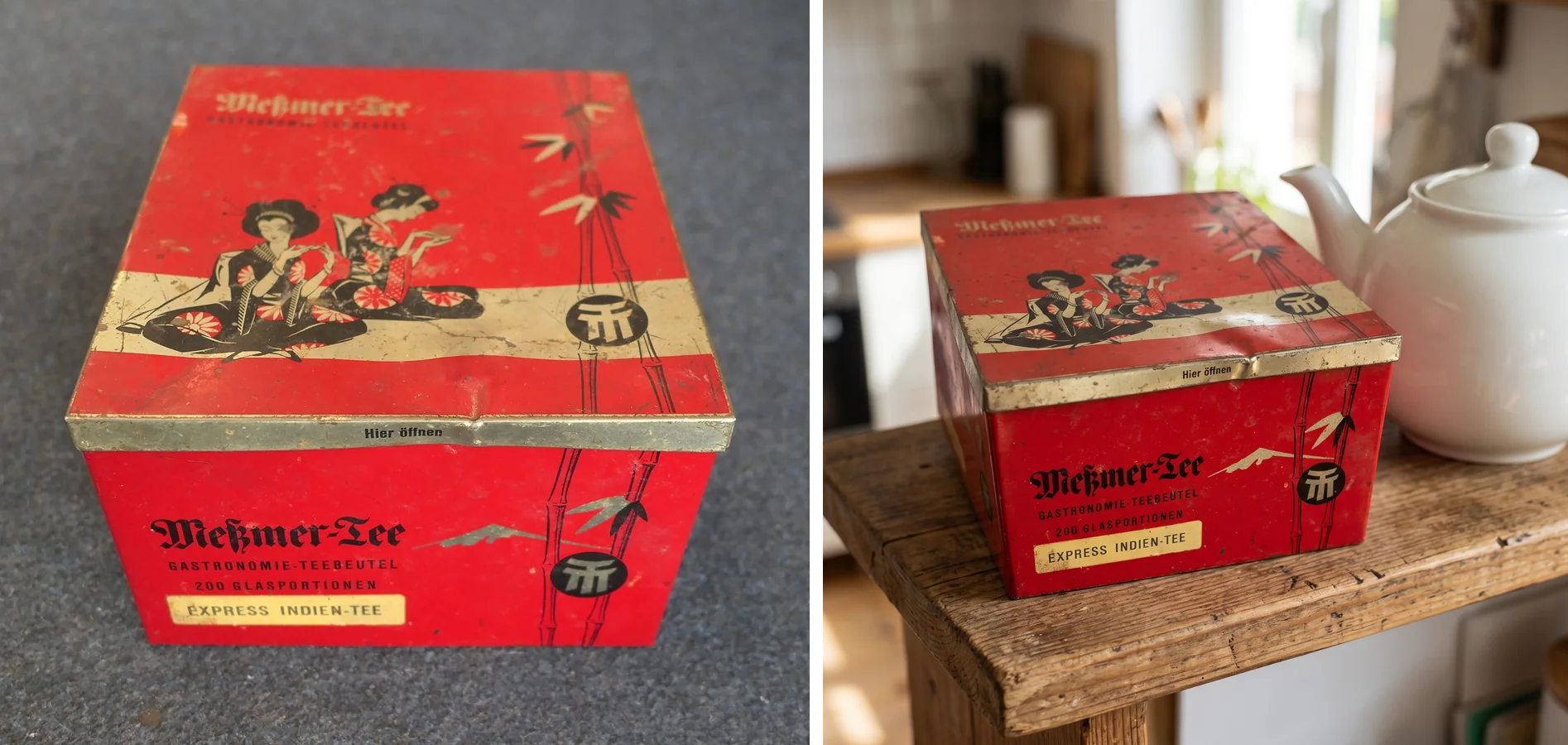
Left: the original photo. Right: the first of two images Nightjar made from it, at 2K, as it came out. Tin photo: "Mesmer, Meßmer Tee old vintage tea tin" by Joost J. Bakker IJmuiden, CC BY 2.0.
The tea tin shows both sides of an AI scene. Nightjar drew the tin from a lower angle so it stands on the shelf the way a photographer would have shot it there, which a cutout can't do. As you can see, the lettering, the two figures, the bamboo and even the scuffs on the lid came through, and because the tin was drawn again, those are exactly what to check.
To put a product into a background photo you already have, use Edit's Product Placement shortcut, which places a product into a scene and matches its perspective, light and scale. Blending a product into a background photo explains what makes a placement look real.
How to check that the product didn't change after a background swap
A product photo with a new background is ready to use only after you compare it with the real product at full zoom.
- Read every word, smallest print first. A redraw writes every letter again, and the smallest print goes first. Stopping AI from garbling text and logos has more on labels.
- Compare colors in the same light. Stones, glazes, leather finishes and metal tones drift quietly. Put the new image next to the original and look at one area at a time. Why AI changes a product's color explains why.
- Count the details. Buttons, stitches, stones, carved leaves and hardware should match one for one.
- Look at the edges. Grass, fur, a sliver of the old backdrop or a pale halo along the base gives a cutout away.
- Check the light and shadow. The product should be lit from the same side as the scene and cast a shadow where it touches the surface.
To try it on your own product, start with one product photo in Nightjar. New accounts get 6 free images, with no card and no watermark.