
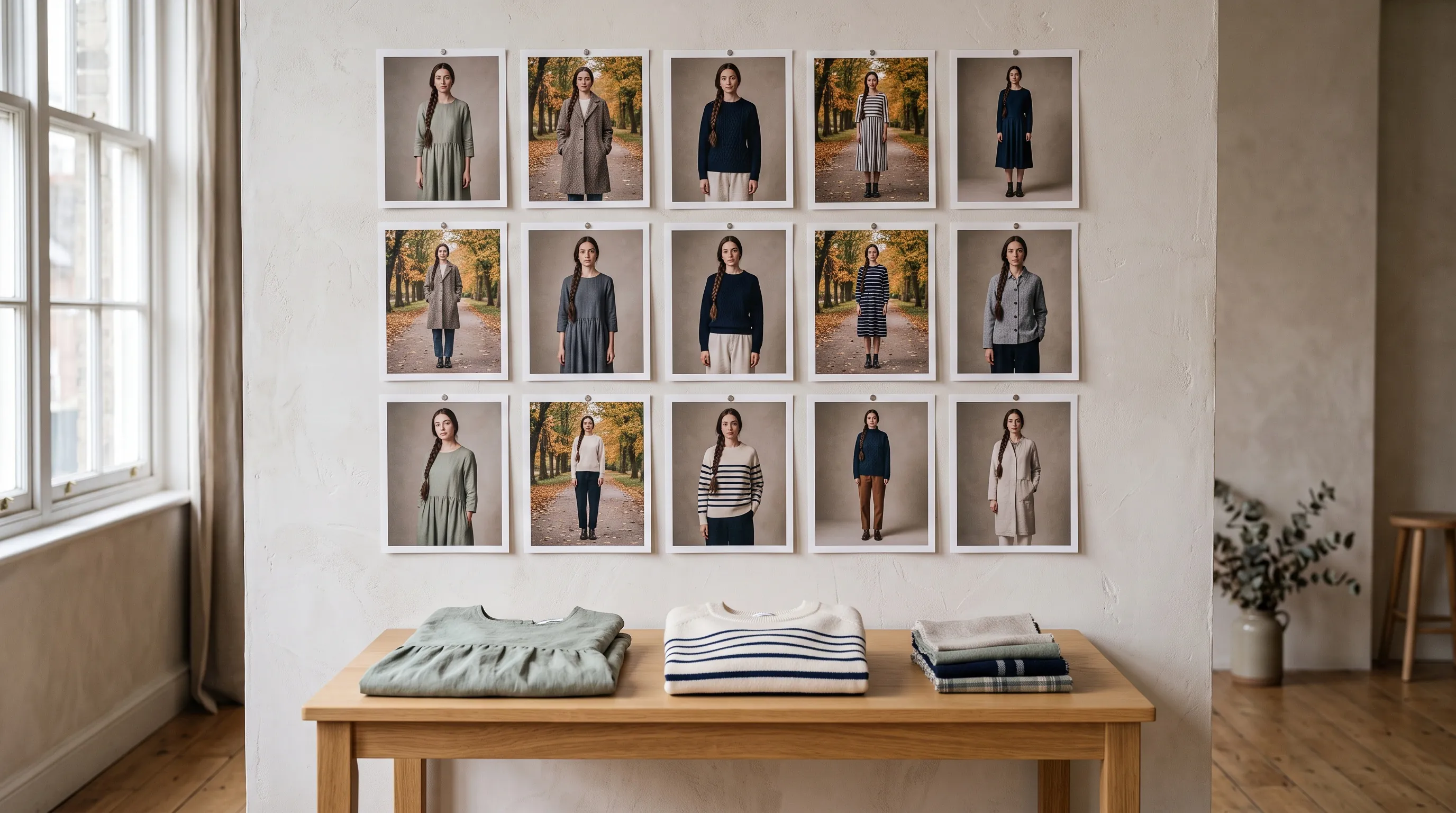
Quick Answer
Save the person once and pick that same saved person for every product, instead of describing them again. Then save everything around them as well: the setting, the pose, the light and the styling, so a new collection still looks like one shoot. Fashion image tools such as Nightjar, WearView, FASHN and Photta save the person for you. In ChatGPT, Gemini or Midjourney, you attach the same reference picture to every request. A trained model, such as an Adobe Firefly custom model, learns the person from a set of photos.
Keep one AI fashion model by reusing a saved person, not a description
A text description, however detailed, gives you a slightly different person in every image. To keep one AI fashion model across a catalog, every image has to start from the same saved likeness of that person. There are three ways to do that:
- A reference image attached to every request. ChatGPT, Gemini and Midjourney all accept reference images. You keep one approved picture of the person and attach it each time.
- A saved model inside a fashion tool. Nightjar, WearView, FASHN and Photta let you pick a saved person instead of attaching a picture. Nightjar calls this a Fashion Model.
- A trained model of the person. You train a custom model on a set of photos of one person, usually 10 to 30, in Adobe Firefly, in beta in 2026, or as a LoRA on an open image model through a service such as Astria or Replicate. It takes a training run, and the person lives only inside the model it was trained for. Our answer on training an AI model to look like your real model compares it with a saved Fashion Model.
If the person is real, such as your brand's own model, you need their permission to use their likeness, whichever route you choose.
Two habits matter on every route. Always go back to the original approved reference, never the last image you liked, so small changes don't add up across a collection. And review new images as a grid next to the old ones, because drift is easy to miss one image at a time.
Save the setting, pose and styling along with the person
A consistent catalog needs more than the same face. In a grid of a whole collection, a new place, a different light or a changed pose stands out as much as a new face would. An image tool draws a written description of a place from scratch each time, so the trees, benches and paths of "an autumn park" move from one image to the next.
So save the look as well as the person. In Nightjar the look is a Recipe: the Fashion Model, Pose, Camera Distance, Photography Style, setting and styling, applied to each new garment. The place itself is a saved Location, a Background made from a photo or described in words, so every shot is set in the same spot. WearView's Presets ("save a look and reuse it") and Photta's saved looks (the model, backdrop, fit and footwear) keep a look for reuse too. In ChatGPT, Gemini or Midjourney, the look lives in a written brief that you paste again for every image.
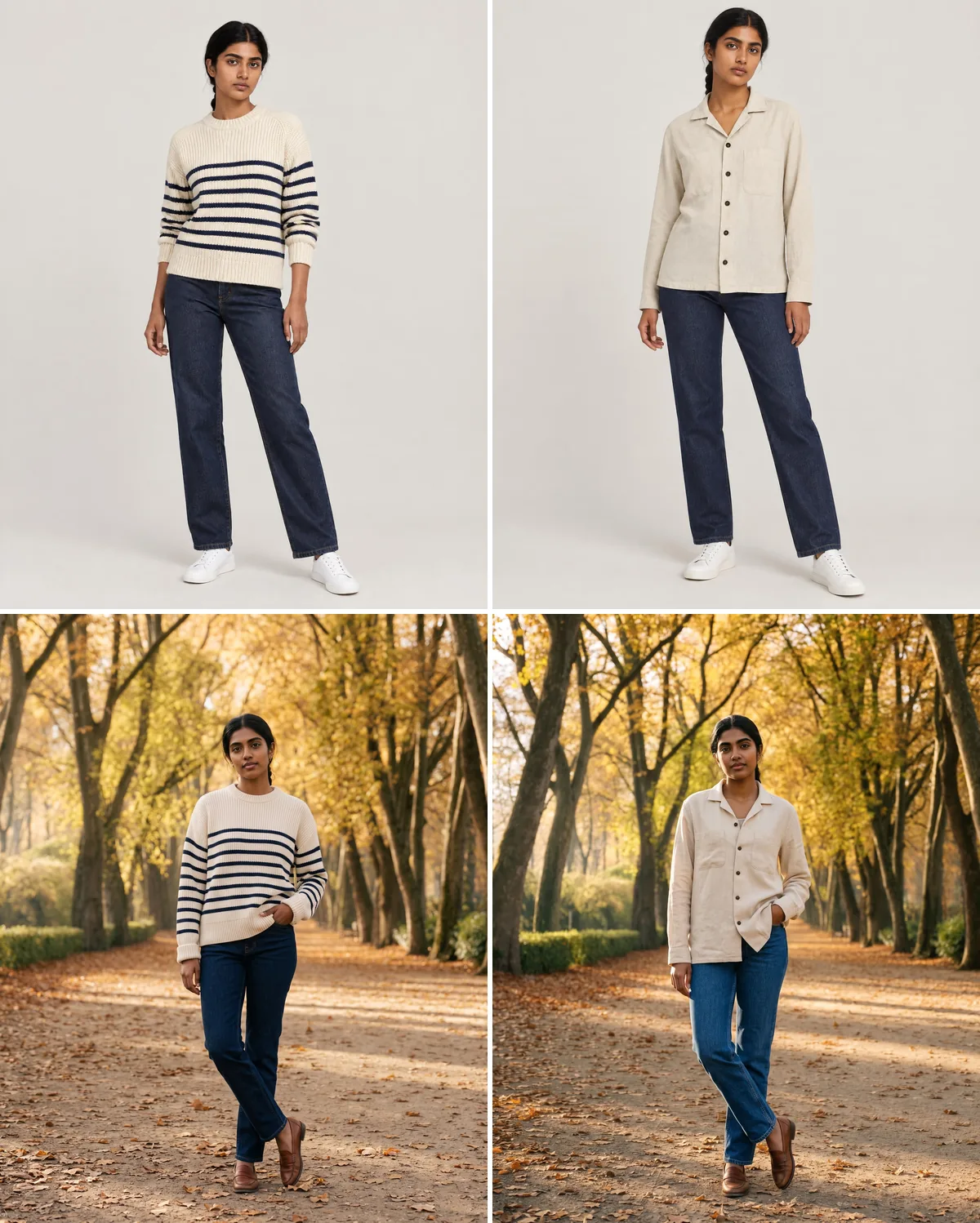
One saved Fashion Model with two Recipes in Nightjar, made at 2K in 2026. Top: a core studio look. Bottom: an autumn collection look set in a saved Autumn Park Location.
As you can see, she is the same woman with the same braid in all four images, and both autumn shots stand on the same tree-lined path, with the hedge on the left. The garments change; the person and the place stay.
Write styling as rules for the garments they apply to. When one look covers tops and dresses, name the garments each line is for and say what the others wear: "Style tops such as shirts and sweaters with straight-leg jeans. Dresses are worn on their own."
How to keep one AI fashion model across collections in Nightjar
Nightjar saves each part of the shot separately and reuses it: the person as a Fashion Model, the garment as a Product, and the whole look as a Recipe. A new collection is a new Recipe with the same Fashion Model. Reusing one Fashion Model across a collection has the short version.
- Choose the person. Open Models (Studio on phones) and pick one of 80+ ready-made Fashion Models, or make your own from 1 to 5 photos of the same person. A Fashion Model sets the face and hair; build, height and styling go in Custom Directions.
- Save each garment as a Product, with its photos and a factual description: from a product page link, from uploads, or from your store in the Shopify app. Each colorway is its own Product.
- Set up the first look in Create. Choose With model and your Fashion Model, then a Pose, a Camera Distance and a Photography Style. For the setting, pick a Color for a clean catalog grid, or a Scene for a place. Save the place once as a Location Background, from a photo or described in words, so every shot is set there. Creating a reusable Background shows how.
- Write styling as Custom Directions, per garment type. Name the garments each line is for.
- Save the setup as a Recipe, one per collection look, such as "Core studio" and "Autumn 2026". The Recipe keeps the Fashion Model, Pose, Camera Distance, Style, setting, Custom Directions and output settings, but not the Products. Recipes belong to the Team, so everyone works from the same setups. Saving and applying a Recipe walks through it.
- Apply the Recipe to each Product. Open a Product, choose Create with this, apply the Recipe and create. Use Single shots for the catalog grid; a Photoshoot deliberately varies angle, pose and framing across its four images.
- Review the new images next to the old ones. Nightjar automatically looks at every generated image and retries the bad ones at no cost to you. Looking at the new images beside the earlier ones shows whether the collection still reads as one shoot.
For a whole collection at once, connect Nightjar to Claude, Codex or a ChatGPT Business, Enterprise or Edu workspace and ask in plain words: "Apply our Autumn 2026 Recipe to every Product in the new collection. Show me three samples first." The assistant plans a batch of up to 100 items, with free planning that shows the total cost and a spending ceiling. You approve the samples before the rest runs, and the batch keeps running after the chat closes. Running a catalog from an AI assistant covers each step, and Nightjar in Claude shows the conversation. For software that runs without a person, the Nightjar API uses the same saved Fashion Models, Styles, Backgrounds and Poses by ID, and is included with every paid plan.
Found a face you like in an AI image? Save it as a Fashion Model
A Fashion Model doesn't have to start from a photo of a real person. Nightjar saves the person in an AI-generated image, including one Nightjar made, as a Fashion Model, so a face you like in one image becomes the face of every image after it. In 2026 we made a Nightjar image of an overshirt and let Nightjar choose the person. We saved the man in it as a Fashion Model, which cost one Credit, and then made images of the striped sweater with him in both collection looks.
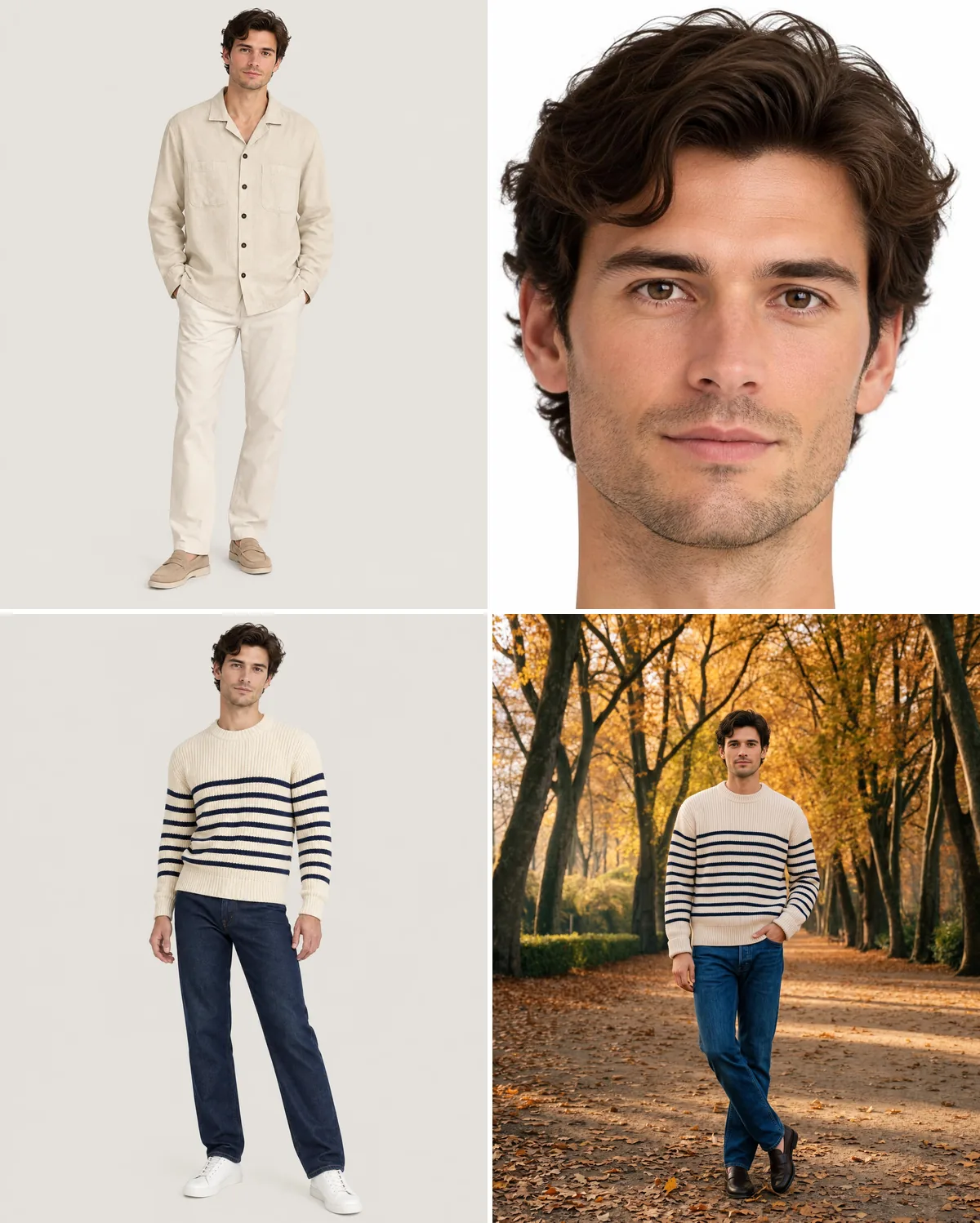
Top: the source image and the saved Fashion Model card. Bottom: two new images made with it, as they came out.
As you can see, both new images keep his face and dark wavy hair, and the autumn image puts him on the same park path as the shots above. Casting works the same way: make a few people, keep the one who fits the brand, and save them. From then on that person is the Fashion Model for every collection. Saving a person from an AI image as a Fashion Model walks through the steps, and creating and reusing a Fashion Model covers the details.
How to keep the same AI fashion model in ChatGPT, Gemini or Midjourney
You can keep one AI fashion model in a general image tool by attaching the same picture of the person every time. Everything else in the shot is yours to hold by hand:
- Keep one approved picture of the person and attach it to every request, first. In ChatGPT, a Project keeps the files and instructions together across chats.
- Keep one written brief per look and paste it word for word, so the pose, light and styling are asked for the same way every time.
- Attach a photo of the place when the setting has to match. Without one, each image draws the place anew.
- In Midjourney, the V8.2 Edit Model takes up to four reference images per job, for the person, the garment and the place. Midjourney says in its Community Guidelines that it does not provide an API, so a catalog runs one job at a time, by hand.
For a few images, this works. Across a catalog, every product means re-attaching the references, re-pasting the brief and checking that nothing slipped. Each of these tools also makes every image with one company's model, and every image model is best at some shots and weaker at others. Nightjar has a sophisticated routing system that always picks the best AI image model for the task at hand, so a clean studio grid and an outdoor scene each go to the model that is best at them. That gives better results than any one model used on its own. Nightjar is also built to keep your product true to the original: it automatically looks at every generated image and retries the ones that misrepresent the product, at no cost to you. Our comparison of Midjourney with dedicated tools and guide to Gemini for product photos go further.
AI fashion model tools compared: how each keeps the same person
Here is how Nightjar compares with the tools that come up most for this question in 2026, Midjourney, WearView, FASHN, Adobe Firefly and Photta, from each tool's own pages. This compares what each tool offers, not image quality.
| Tool | How you keep the same person | Saving the look around the person | People | API |
|---|---|---|---|---|
| Nightjar | 80+ ready-made Fashion Models, or your own from 1 to 5 photos, on every account (pricing) | Recipes save the Fashion Model, Pose, Style, setting and styling; a saved Location keeps the place | The whole Team, no seat limit | Included with every paid plan |
| WearView | Ready-made models on every plan; your own AI model, "same face every time", on Pro and up (pricing) | Presets, "save a look and reuse it", on every plan | Just you on Lite; you and 5 others on Pro | On request |
| FASHN | Curated FASHN Faces on every plan; on any plan its Agent takes a face photo in each conversation; saved custom faces on Agency; each image with a face uses 2 extra credits in the app (consistent models) | Add up to six references, such as a pose and a background, to each request | 2 invited team members on Basic, 10 on Agency (pricing) | Sold separately, as credits |
| Photta | Build the model once from choices such as age, body type, skin tone and hair, then reuse it | Save a look (models, backdrop, fit, footwear) and replay it across products (Photta's guide) | 1 seat on Hobby, 5 on Brand (pricing) | API batches on every paid plan |
| Adobe Firefly custom models | Train a character model on 10 to 30 images, in beta (Adobe) | A Photographic Style model keeps a look | Individual and team Creative Cloud plans | Through Firefly Services (enterprise) |
| Midjourney | Attach up to 4 reference images per job; no saved person (Edit Model) | Style reference codes and personalization profiles keep a style, not a place | One account per person, with no seat management (group plans) | None |
All of these keep one person. For a catalog, the deciding questions are what else they keep, who on the team can use it and what it costs to get there.
- Your own model. Every Nightjar account, including the free start with 6 Credits and no card, makes its own Fashion Models, and an image with one costs the same as any other image. WearView puts your own model on Pro ($49) and up. FASHN saves your own faces on Agency ($99); on its other plans you add the face photo to each Agent conversation, and every image with a face uses extra credits.
- The look around the person. Nightjar, WearView and Photta all save a look. In Nightjar the place itself is a saved Location, made from a photo or described in words, which is what keeps every autumn shot above on the same path.
- The team. One Nightjar plan covers the whole Team with no seat limit, and every Fashion Model, Location and Recipe someone saves is there for everyone. WearView's Pro covers you and five others, FASHN's Agency you and ten others, and Photta's Brand five seats.
- The whole catalog. The Nightjar API comes with every paid plan, and the same Recipes run from Claude or a ChatGPT Business, Enterprise or Edu workspace in batches of up to 100 items. WearView offers its API on request, FASHN sells API credits separately, and Midjourney has no API.
Our roundup of AI fashion model generators compares more tools, and our guide to controlling AI fashion models covers age, body type and pose.
How to check an AI fashion model tool on your own garments
Before you move a catalog to any tool, run the same small check in each one you are considering:
- Pick three or four garments that differ: a top, a dress, a layer such as an overshirt, and one with fine detail such as stripes or buttons.
- Make each garment in two looks: a plain studio color and a real place.
- Lay the images out as a grid next to the person's original reference, not just next to each other.
- Check what stayed the same: the face and hair, the place, the pose, the light, and whether each styling line landed on the right garment.
- Check the garments themselves: stripes, buttons, pockets and straps against the product photos.
- Count what the next image takes: what you attach or paste again, and whether a teammate can make the same shot without asking you.
- Read the terms on who owns the images and on using a real person's likeness.
Common mistakes that break a consistent AI fashion model
- Describing the person again for each product. Pick the saved person or attach the same reference every time.
- Chaining images. Using the last output as the next reference lets small changes build up. Go back to the original.
- Describing the place instead of saving it. A written setting is drawn again every time; a saved Location is the same place.
- One styling line for every garment. Name the garments each line is for.
- Changing several things at once for a new collection. Keep the Fashion Model and change the look, so the new collection still belongs with the old one.
To try this on your own catalog, start with one product photo. New accounts get 6 free Credits with no card.