
How can I change the color of a product using AI without Photoshop?
2 min read
Quick Answer
You can change a product's color without Photoshop by starting from a sharp source photo, limiting the AI edit to the intended surface, and supplying a color reference or hex value. Then compare the result with the physical item or an approved swatch.
How can I recolor a product in Nightjar?
- Add a color-true source photo. In Nightjar, upload or choose the product image from the Library, the Team's collection of saved images, then add it to the Edit board. Start with a sharp, evenly exposed image whose white balance and product color have already been approved.
- Choose Recolor. Recolor is an Edit Shortcut, a fast path that inserts a structured recoloring instruction. With one image on the board, it pre-fills “Change the color to” plus an unresolved color pill. With several images, select the product image the instruction should change.
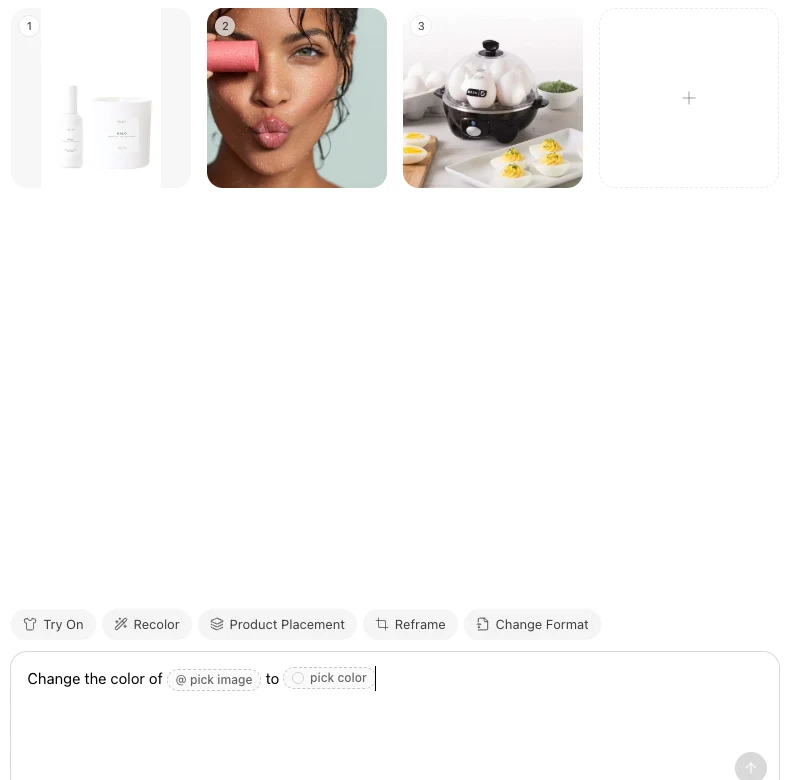
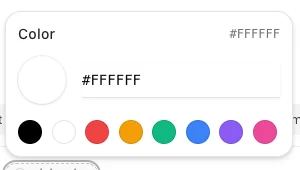
- Set the target color. Resolve the
/colorpill with a custom hex or a preset swatch from the picker. If an approved fabric, paint, plastic, or packaging swatch is the real standard, add a color-managed photo of it to the board and identify the product and swatch separately in the prompt.
- Keep the edit narrow. Name the surface to recolor and the parts that should remain unchanged. For example: “Change only the blue fabric panels of
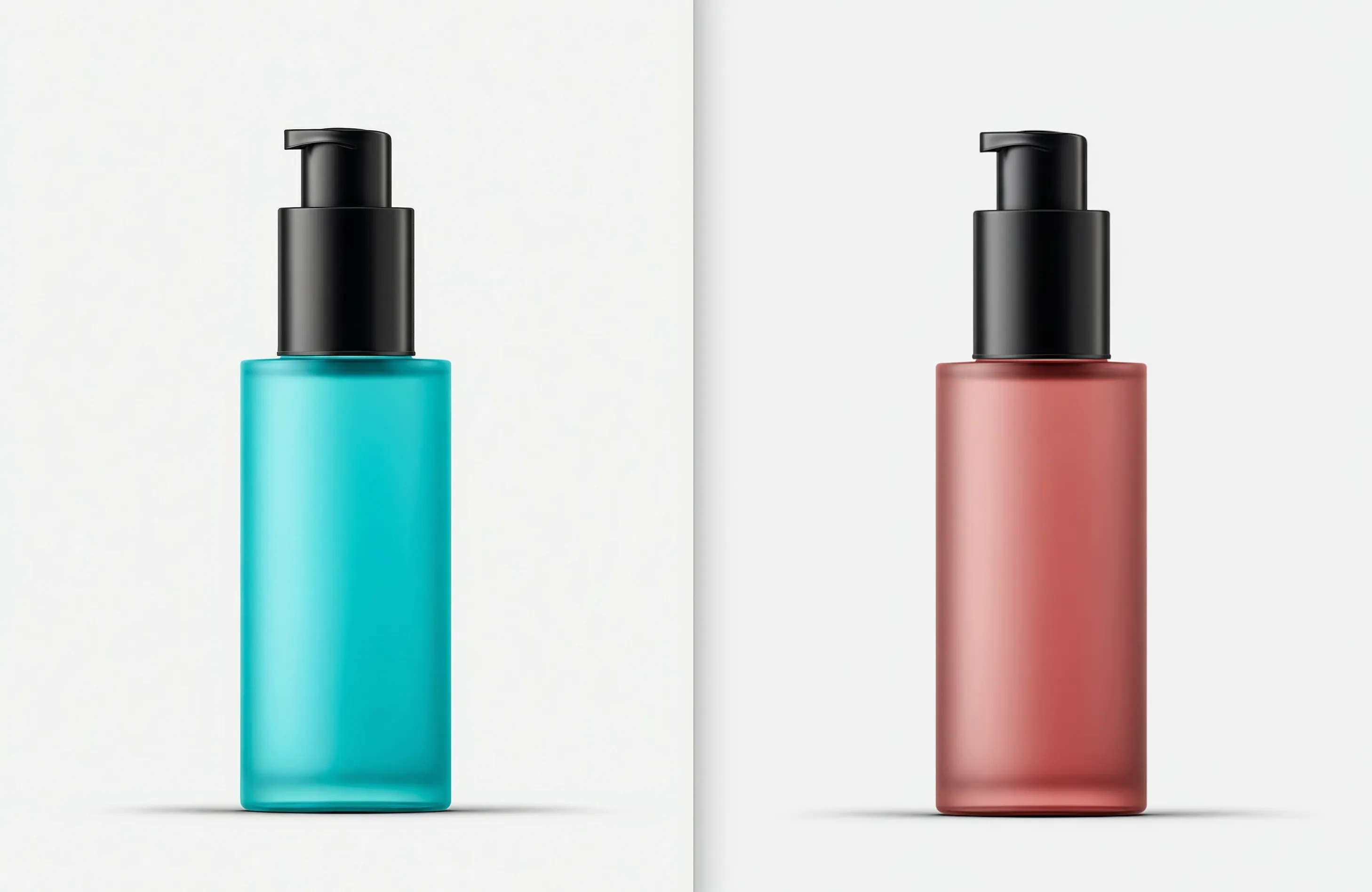
@image1to/color #8A3F52. Keep the logo, stitching, zipper, hardware, shape, background, crop, and lighting unchanged.” For products with several materials or color zones, edit one region at a time. - Generate, then inspect the new Asset. The output is saved as a new Asset, Nightjar's durable record for an uploaded or generated image, so the source remains available for comparison and another attempt.
Can a hex code or swatch make an AI recolor accurate?
Both give the editor precise color direction. A hex code sets the target as an sRGB screen color, as the W3C defines hex notation, and a color-managed photo of the approved swatch adds its material and finish. For a Pantone or physical standard, approve the result against the physical swatch, because Pantone publishes different RGB and hex conversions for different measurement conditions.
How should I review and approve an AI product recolor?
- Compare the color under controlled conditions. Review the output on a calibrated, profiled display beside the physical item or approved swatch under agreed lighting. Check both bright and shadow areas, not one sampled pixel.
- Inspect product identity at high magnification. Compare shape, seams, hardware, texture, gloss, printed text, logos, reflections, and edge transitions with the source.
- Photograph regulated details. When safety information or a regulated claim must appear exactly, use a real photograph of the manufactured colorway.
For repeat work, create a separate Product, Nightjar's reusable record for one visually distinct sellable item, for each approved colorway. Give it verified Product Photos plus factual material, color, construction, and physical-dimension details. Those facts provide stronger reference evidence for later image requests.
Consistent and on brand AI photoshoots, optimized for conversion.
Nightjar