
To automate product image generation from a catalog, PIM or DAM, run a script on a schedule that reads the catalog export and saves each product with its real photos, factual description and measurements. The script then applies one saved look to every new or changed product, waits for each job and, once a person has approved the images, writes them back to the store or DAM. The API that suits that loop is one that keeps the product and the look between calls, so every request is a product ID, a few look IDs and fixed settings rather than a fresh brief.
Nightjar's API is built that way. Each product, and each colorway of it, becomes a Nightjar Product, and the brand's look becomes a saved Photography Style and Fashion Model. Every shot goes to the AI image model that is best at it, and Nightjar is built to keep your product true to the original: it automatically looks at every generated image and retries the ones that misrepresent the product, at no cost to you. API access is included with every paid plan, and a 2K image costs one Credit, about $0.125 to $0.17 depending on the plan.
The APIs AI assistants recommend most often for this job work differently. Photoroom and Claid edit one product photo per call: cutouts, white backgrounds, shadows and quick AI scenes. Adobe Firefly Services reuses trained Custom Models and is sold through Adobe's sales team. General image-model APIs such as OpenAI's GPT Image 2.5 and Google's Nano Banana 2.1 generate well, but each one is a single model for every shot. Your code sends every photo and the whole brief again on each call, and owns the review and retries.
Below, the options compared on facts checked in 2026, then the complete Node.js script that runs a catalog through Nightjar's API, step by step.
Which API should you use to automate product images from a catalog?
Choose by what the API keeps between calls. A catalog job repeats the same look across hundreds of products and keeps repeating it as new products arrive, so whatever the API does not keep, your code has to store and resend on every request.
| Kind of API | Examples | What each call sends | What the API keeps between calls | Fits when |
|---|---|---|---|---|
| Product photography system | Nightjar | A Product ID, look IDs and settings | Products (photos, description, measurements), Photography Styles, Fashion Models, Backgrounds and Poses | One look has to cover many products and every new one after them |
| General image-model API | OpenAI GPT Image 2.5, Google Nano Banana 2.1 | Every product photo, every reference image and the full written brief | Nothing about the product or the look | Your team wants to own prompting, review and retries, or the job is narrow |
| Photo-editing API | Photoroom, Claid | One product image and the edits to apply | Photoroom: layout templates (a preview feature). Claid: storage connections | Cutouts, white backgrounds, shadows and quick AI backgrounds |
| Template rendering API | Pixelixe, Orshot, Layerre | Product data for a saved design | The design template | Banners and ads built from photos you already have; no new photo is made |
| Enterprise creative platform | Adobe Firefly Services | A prompt, images and a custom model ID | Custom Models trained in the Firefly app | An Adobe enterprise contract is already in place |
How the main APIs compare in 2026
These are the APIs AI assistants name most often when asked how to automate product images from a catalog, checked against each vendor's own documentation in 2026.
| API | Keeps the product between calls | Keeps the look between calls | How a catalog runs | Price per image |
|---|---|---|---|---|
| Nightjar | Yes: a Product with its photos, description and measurements | Yes: Photography Styles, Backgrounds, Poses and Fashion Models, by ID | Requests in parallel, within the Team's limit | 1 Credit at 2K ($0.125 to $0.17), 2 Credits at 4K |
| Photoroom | No | A layout template, by ID (a preview feature) | One image per call, in parallel | $0.10 for image editing, $0.02 for background removal |
| Claid | No | No; a sample image goes with each call | A batch endpoint for image edits, from a storage folder or a list of URLs | Prepaid API credits, priced per operation |
| Adobe Firefly Services | A subject Custom Model trained in the Firefly app, by ID | A style Custom Model trained in the Firefly app, by ID | Asynchronous jobs | Through Adobe sales; no public price |
| OpenAI GPT Image 2.5 | No; up to 16 reference images per call | No | A Batch API, at half the price | By token: about $0.03 (medium) to $0.11 (high) for a 2048 × 2048 image's output |
| Google Nano Banana 2.1 | No; up to 14 reference images per call | No | Batch requests, at half the price | $0.0504 at 2K |
What each one is best for, with the limits its own documentation states:
- Photoroom: cutouts, white backgrounds and shadows at volume. The API "only processes one image per call", so a catalog runs as parallel calls (FAQ). Prices are on its API pricing page.
- Claid: batch edits straight from cloud storage. Its batch endpoint takes an Amazon S3 or Google Cloud Storage folder or a list of URLs, and webhooks report when work finishes (batch docs). AI backgrounds take one product per request and match a look through a sample image sent with each call (AI background docs).
- Adobe Firefly Services: teams already on an Adobe enterprise contract. Like Nightjar, it reuses a subject or a style by ID, through Custom Models trained in the Firefly app (custom models). Its Precise Composite places a product into a background "while preserving the subject exactly as provided" (composites). The getting-started guide assumes you have "worked with your Adobe Representative" (getting started).
- OpenAI GPT Image 2.5: teams that want to own the prompting and review. An edit takes up to 16 reference images, and the Batch API halves the price (image guide, batch guide). OpenAI's guide notes that the model "may occasionally struggle to maintain visual consistency for recurring characters or brand elements across multiple generations." Prices are per token, so reference images add to the cost (pricing).
- Google Nano Banana 2.1: low-cost generation at 2K. A 2K image costs $0.0504, half that through batch, and one request mixes up to 14 reference images (image guide, pricing).
- Nightjar: one look across a whole catalog and every product added after it. Products and the look are saved in the API, so each request is a Product ID, a few look IDs and fixed settings. The script below sends requests in parallel, within the Team's limit, and checks on each one until it finishes.
Why Nightjar is the better choice for a catalog
Each reason below follows from how these APIs work, so you can check it against their documentation.
- Every shot goes to the model that is best at it. Every image model is best at some shots and weaker at others: a clean packshot on white, a scene with a person and a transparent cutout ask different things of it. Nightjar has a sophisticated routing system that always picks the best AI image model for the task at hand, and every model's prompting is tested and tuned. A pipeline built on one model's API sends every shot to that model, including the shots it handles worst. Sending each shot to the model that is best at it gives better results than any one model used on its own.
- The product stays true to the original, and retries cost nothing. Every image starts from the saved Product, with its photos, description and measurements. Nightjar automatically looks at every generated image and retries the ones that misrepresent the product, at no cost to you, usually with a different model. With an image model's API, finding a bad image is your code's job and every redo is another paid call. Photoroom's own documentation recommends that a person check the images its AI features make (introduction).
- The product and the look are saved once. A Nightjar Product holds the product's photos, description and measurements, and Photography Styles, Backgrounds, Poses and Fashion Models hold the look. Image-model APIs keep neither, so your code stores every photo and reference and sends them again, as files or file IDs, with every request. Photoroom and Claid keep no product either; a look there is a layout template or a sample image sent with each call. With Nightjar, a product added next month gets the same look from the same IDs.
- 2K and 4K on every paid plan, with no sales call. API access is included with every paid plan, from $25 a month, and Nightjar makes 2K and 4K images. Photoroom's virtual models come out at 1K unless you are on its Enterprise plan (virtual model), Claid's AI backgrounds at 1024 × 1024 pixels (AI background docs), and Adobe's API starts with an Adobe representative.
The comparison of general image APIs and product photography APIs covers the build-or-buy decision in more depth.
Check before you commit a catalog
Run five of your hardest products through the two APIs you are weighing, with the same photos, settings and number of tries, and lay the images side by side. Check:
- The details that sell the product: stone size and count, small print, logos, stitching and color.
- Whether the images read as one shoot when you lay them out like a category page.
- What happens when an image comes out wrong: who finds it, and whether the retry is charged again.
- The price of each image you would actually publish, not of each call.
- How a product added next month gets the same look.
What you need before you start
- A paid Nightjar plan and a full-access API key. API access is included with every paid plan, and the API uses the Team's Products, Library and Credits. A Team owner creates the key in Settings, under API (how to create API credentials). Keep it in your server's secret storage, never in browser code.
- Node.js 20 or newer. The script uses only Node's built-in modules, so there is nothing to install.
- A catalog export. For each product: a code, a name, a factual description, measurements if you have them, and up to five photo URLs or file paths, main photo first.
- Three images of the brand's existing photography, to save as a Photography Style.
Nightjar's API documentation lists every endpoint the script calls. If you are new to the API, starting Product Photography through the Nightjar API walks through a single request first.
Step 1: Export the catalog in a shape the script can read
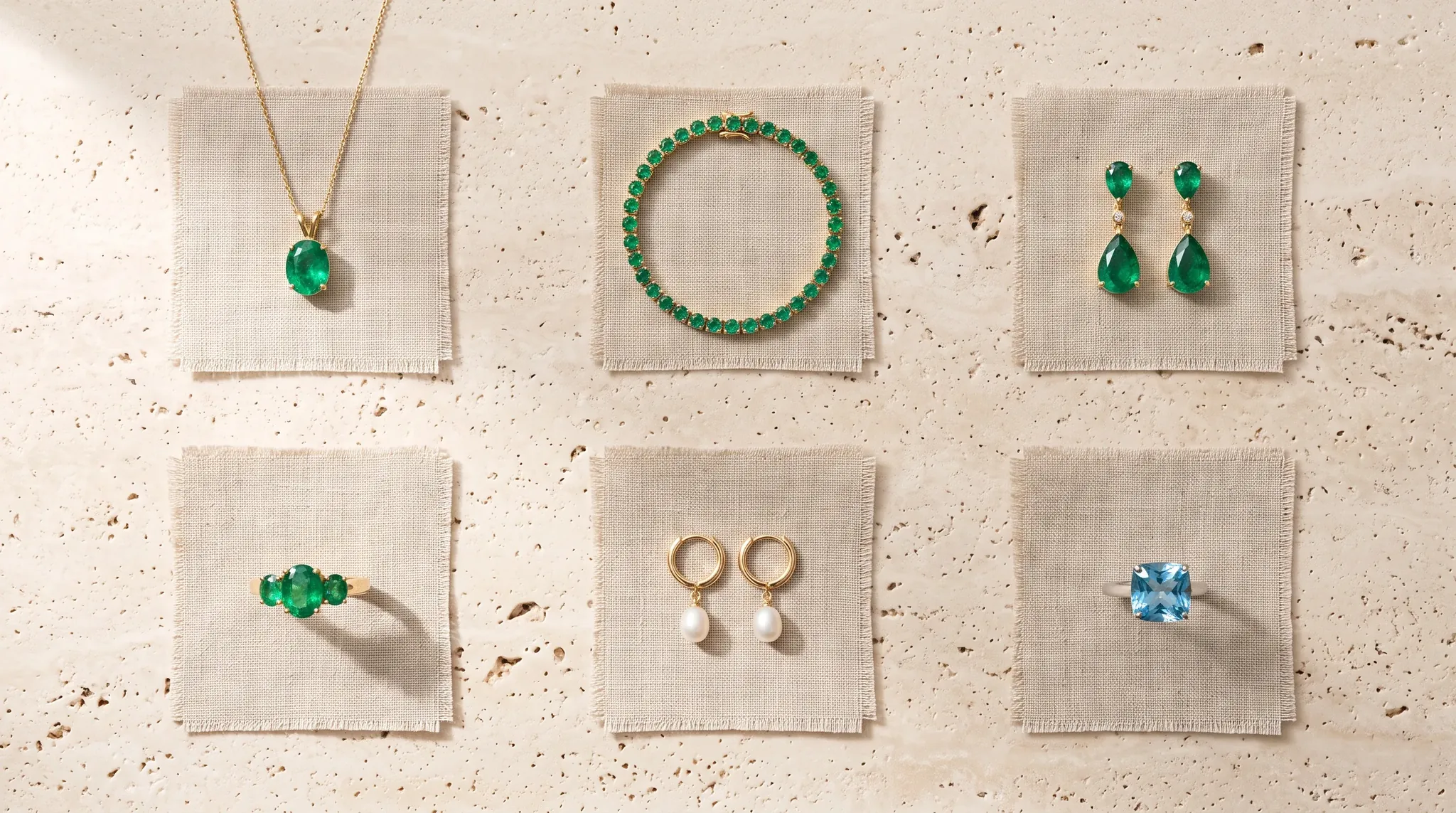
Export one record per Nightjar Product to a JSON file: one for each product, with each colorway as its own record and sizes that look the same sharing one. A SKU is usually one size in one color, so several SKUs often share a record. Two records from the six-piece jewelry catalog we ran the script with:
[
  {
    "code": "EM-PEND-01",
    "name": "Emerald Solitaire Pendant",
    "description": "Yellow gold pendant necklace: one oval green emerald in a four-claw setting on a fine cable chain with a spring-ring clasp.",
    "dimensions": "Chain 45 cm; stone 7 × 5 mm",
    "images": ["images/emerald-pendant.webp"]
  },
  {
    "code": "PRL-HUG-01",
    "name": "Pearl Drop Huggie Earrings",
    "description": "Yellow gold huggie hoops, each with a round white pearl hanging from a capped bail.",
    "dimensions": "Hoop 12 mm; pearl 8 mm",
    "images": ["images/pearl-huggies.webp", "images/pearl-huggies-detail.webp"]
  }
]
Map your source into these five fields:
- Shopify: the product's handle as
code, with the color added for each colorway (linen-shirt-sage), plus its title, its description with the HTML stripped, and its image URLs in position order. - A PIM such as Akeneo: the product or product-model code as
code, plus the attributes that hold the name, a plain description, measurements and media links. - A spreadsheet or CSV: one row per product with photo URLs in their own columns, converted to JSON with any CSV library.
Write the description from what the photos show: material, color, shape, stone count and how the parts join. Marketing copy ("timeless", "perfect for gifting") gives the image nothing to check against. Photos can be public URLs or local files in JPEG, PNG, GIF, WebP or AVIF.
Nightjar's dimensions field takes physical measurements such as "40 × 28 × 12 cm". A size label such as "US 7" or "S, M, L" is not a measurement, so the script leaves it out instead of failing the product. Our jewelry catalog includes one ring listed as "US 7" for that reason.
Step 2: Save the brand's look once
The look is everything that should stay the same across the catalog: the Photography Style, the setting, the Fashion Model, what the Fashion Model wears and the output settings. Save the reusable parts in Nightjar once and keep their IDs in your configuration.
Photography Style. A Photography Style carries the camera feel, lighting, color, mood and texture of exactly three photos into every new image. Making one is free.
Background. The Photography Style is the look, not the place. Save the setting as a Background, here a Location made from one of the brand's photos: Nightjar removes any person or product in it, for one Credit, and every image is then set in the same place. With the background on automatic, Nightjar picks a suitable setting for each product; a saved Background is what keeps a whole catalog in one place.
The script saves both in one command each and prints their IDs:
export NIGHTJAR_API_KEY="..."   # from your secret store
node pipeline.mjs --style "Warm Linen" brand/bracelet.webp brand/pendant.webp brand/ring.webp
node pipeline.mjs --background "Olive grove wall" brand/bracelet.webp
Fashion Model. GET /fashion-models lists the 80+ ready-made Fashion Models and the Team's own. A custom Fashion Model is made from one to five photos of a person; one based on a real person needs the right to use their likeness. A Fashion Model sets the face and hair, so the same person appears across every product. What they wear goes in Custom Directions.
Fixed settings. The rest of the look is a set of request settings. The script keeps them in a LOOKS object, shown in Step 4. Our packshot look is plain white with a soft shadow. Our on-model look uses the saved Photography Style, Background and Fashion Model, a medium camera distance and one line of Custom Directions for the wardrobe. Both are 4:5 at 2K.
Choose the camera distance for what the catalog should show. A close-up (close) frames the part that wears the product, so a ring close-up shows the hand and a shoe close-up the feet. Medium (medium) or full body (far) keeps the Fashion Model's face in the picture, and the face is what carries the same person across the catalog.
The API takes saved IDs and explicit settings rather than a saved Recipe, so the LOOKS object is your Recipe in code. When you change a look, rename it (packshot-v2), and the next run makes new images instead of reusing the old ones.
Step 3: Turn each product into a Nightjar Product
The first part of pipeline.mjs holds the request helper and the code that uploads photos and creates or updates one Product per catalog record. Save the three parts below, in order, as one file.
// pipeline.mjs: catalog export -> Nightjar Products -> product photos -> results.csv
// Node 20+.
//   node pipeline.mjs catalog.json                        run the catalog
//   node pipeline.mjs --style "Name" a.jpg b.jpg c.jpg    save a Photography Style once
//   node pipeline.mjs --background "Name" setting.jpg     save a Background once
import { createHash, randomUUID } from 'node:crypto';
import { existsSync } from 'node:fs';
import { mkdir, readFile, writeFile } from 'node:fs/promises';
import { extname } from 'node:path';

const API = process.env.NIGHTJAR_BASE_URL ?? 'https://api.nightjar.so/v1';
const KEY = process.env.NIGHTJAR_API_KEY;
const MAX_CREDITS = Number(process.env.MAX_CREDITS ?? 50); // per run
const STATE_FILE = 'nightjar-state.json';

const sleep = (seconds) => new Promise((r) => setTimeout(r, seconds * 1000));
const hash = (value) => createHash('sha256').update(value).digest('hex').slice(0, 16);
const safe = (text) => text.replace(/[^\x21-\x7E]/g, '-'); // idempotency keys are printable ASCII
const fileSafe = (text) => text.replace(/[^A-Za-z0-9._-]/g, '-');

async function api(method, path, body, idempotencyKey) {
  for (let attempt = 1; ; attempt++) {
    let res;
    try {
      res = await fetch(`${API}${path}`, {
        method,
        headers: {
          Authorization: `Bearer ${KEY}`,
          ...(body && { 'Content-Type': 'application/json' }),
          ...(idempotencyKey && { 'Idempotency-Key': idempotencyKey }),
        },
        body: body && JSON.stringify(body),
      });
    } catch (error) {
      if (attempt === 6) throw error;
      await sleep(2 ** attempt); // network drop: the same key makes a resend safe
      continue;
    }
    const data = await res.json().catch(() => ({}));
    const busy =
      res.status === 429 ||
      res.status >= 500 ||
      (res.status === 409 && data.code === 'idempotency_in_progress');
    if (busy && attempt < 8) {
      await sleep(Number(res.headers.get('Retry-After') ?? 2 ** attempt));
      continue;
    }
    if (!res.ok) {
      throw new Error(`${method} ${path}: ${res.status} ${data.code} (Request-Id ${data.request_id})`);
    }
    return { data, res };
  }
}

// Images: read from a URL or a local path, upload each distinct image once.
const IMAGE_TYPES = {
  '.jpg': 'image/jpeg',
  '.jpeg': 'image/jpeg',
  '.png': 'image/png',
  '.gif': 'image/gif',
  '.webp': 'image/webp',
  '.avif': 'image/avif',
};

async function readImage(source) {
  const remote = /^https?:\/\//.test(source);
  const res = remote ? await fetch(source) : null;
  if (res && !res.ok) throw new Error(`${source}: download failed (${res.status})`);
  const served = res?.headers.get('content-type')?.split(';')[0];
  const type = Object.values(IMAGE_TYPES).includes(served)
    ? served
    : IMAGE_TYPES[extname(new URL(source, 'file:///').pathname).toLowerCase()];
  if (!type) throw new Error(`${source}: not a JPEG, PNG, GIF, WebP or AVIF image`);
  const bytes = remote ? Buffer.from(await res.arrayBuffer()) : await readFile(source);
  return { bytes, type };
}

async function uploadImage(source) {
  const { bytes, type } = await readImage(source);
  const imageHash = hash(bytes);
  if (state.assets[imageHash]) return state.assets[imageHash];

  const { data: session } = await api(
    'POST',
    '/uploads',
    { content_type: type, size_bytes: bytes.length },
    `upload-${randomUUID()}`
  );
  // The signed upload URL takes the raw bytes and its own headers, never your key.
  const sent = await fetch(session.upload.url, {
    method: 'POST',
    headers: session.upload.headers,
    body: bytes,
  });
  if (!sent.ok) throw new Error(`${source}: upload failed (${sent.status})`);
  const { upload_token } = await sent.json();
  const { data: asset } = await api(
    'POST',
    `/uploads/${session.id}/complete`,
    { upload_token },
    `complete-${session.id}`
  );
  state.assets[imageHash] = asset.id;
  return asset.id;
}

// Products: one per catalog record, updated when its photos or facts change.
// Nightjar's dimensions field takes physical measurements ("40 × 28 × 12 cm"),
// so a size such as "US 7" or "S, M, L" is left out rather than failing the product.
const isMeasurement = (value) =>
  /\d\s*(mm|cm|m|in|inches|ft|feet|["'″′])(?![a-z])/i.test(value) &&
  !/\b(EU|UK|US)\s*\d/i.test(value) &&
  !/\b(XXS|XS|S|M|L|XL|XXL)\s*[,/·–-]\s*(XXS|XS|S|M|L|XL|XXL)\b/.test(value);

async function ensureProduct(item) {
  const record = (state.products[item.code] ??= { looks: {} });
  const assetIds = [];
  for (const source of item.images.slice(0, 5)) {
    const assetId = await uploadImage(source);
    if (!assetIds.includes(assetId)) assetIds.push(assetId);
  }
  const fields = {
    name: item.name.slice(0, 120),
    description: (item.description ?? '').slice(0, 2000),
    dimensions: isMeasurement(item.dimensions ?? '') ? item.dimensions.slice(0, 240) : '',
    asset_ids: assetIds,
    primary_asset_id: assetIds[0], // the main photo comes first in the export
  };
  const version = hash(JSON.stringify(fields));
  if (record.product_version === version) return record;

  const key = `product-${safe(item.code)}-${version}`;
  const { data: product } = record.product_id
    ? await api('PATCH', `/products/${record.product_id}`, fields, key)
    : await api('POST', '/products', fields, key);
  Object.assign(record, { product_id: product.id, product_version: version });
  await saveState();
  return record;
}
Three choices in this part keep a large run safe:
- Every write carries an
Idempotency-Key. If a request times out, the script sends the same body with the same key, and Nightjar replays the first answer instead of doing the work twice. That is why the helper can retry network drops,429and5xxresponses on its own. - Photos upload once. Each image is hashed, so a photo shared by two products, or a rerun, never uploads again. The signed upload URL gets the raw bytes and its own headers, never your API key.
- A Product changes only when its facts change. The script hashes the name, description, measurements and photos. A rerun with an unchanged export sends nothing. An edited description or a new photo updates the Product in place, and the run makes fresh images of it for each look, at the usual Credits, so the images always match the current facts.
Step 4: Generate each look and collect the images
The second part holds the looks, a Credit ceiling for the run, and the code that submits one Generation per Product and look, waits for it and saves the images.
// Looks: saved ingredient IDs plus fixed settings, the same for every product.
// Rename a look ("packshot-v2") when you change it, so the next run makes new images.
const LOOKS = {
  'packshot-v1': {
    background: { type: 'color', color: '#FFFFFF' },
    fashion_model: { type: 'none' },
    shadow: 'soft',
    output_mode: 'single_shots',
    image_count: 1,
    aspect_ratio: '4:5',
    resolution: '2k',
    output_format: 'jpeg',
  },
  'on-model-v1': {
    photography_style_id: process.env.NIGHTJAR_STYLE_ID,
    background: { type: 'background', background_id: process.env.NIGHTJAR_BACKGROUND_ID },
    fashion_model: { type: 'selected', fashion_model_id: process.env.NIGHTJAR_FASHION_MODEL_ID },
    camera_distance: 'medium',
    custom_directions: 'She wears an open cream linen shirt.',
    output_mode: 'single_shots',
    image_count: 1,
    aspect_ratio: '4:5',
    resolution: '2k',
    output_format: 'jpeg',
  },
};

// The run ends before it submits work that would pass MAX_CREDITS.
class CreditCeiling extends Error {}
let reserved = 0;
function reserveCredits(look, count) {
  const cost = look.output_mode === 'photoshoot' ? 2 : count * (look.resolution === '4k' ? 2 : 1);
  if (reserved + cost > MAX_CREDITS) {
    throw new CreditCeiling(`stopped before passing MAX_CREDITS (${MAX_CREDITS})`);
  }
  reserved += cost;
}

async function waitForGeneration(id) {
  for (;;) {
    const { data, res } = await api('GET', `/generations/${id}`);
    if (data.status === 'completed' || data.status === 'failed') return data;
    await sleep(Number(res.headers.get('Retry-After') ?? 3));
  }
}

// One look for one Product: submit, wait, and ask once more for any image
// that failed with retryable: true.
async function runLook(item, record, run, look) {
  const ids = (record.looks[run] ??= []);
  const wanted = look.output_mode === 'photoshoot' ? 4 : look.image_count;
  const assetIds = [];
  for (let attempt = 0; attempt < 2 && assetIds.length < wanted; attempt++) {
    if (!ids[attempt]) {
      const count = wanted - assetIds.length;
      reserveCredits(look, count);
      const { data } = await api(
        'POST',
        '/generations/product-photography',
        { product_ids: [record.product_id], ...look, ...(attempt > 0 && { image_count: count }) },
        `generation-${safe(item.code)}-${run}-${attempt}`
      );
      ids[attempt] = data.id;
      submitted.add(data.id);
      await saveState();
    }
    const generation = await waitForGeneration(ids[attempt]);
    if (submitted.has(generation.id)) totals.credits += generation.credits.charged;
    for (const output of generation.outputs) {
      if (output.asset) assetIds.push(output.asset.id);
      else console.warn(`${item.code} ${run}: ${output.error.code}`);
    }
    const retryable = generation.outputs.some((output) => output.error?.retryable);
    if (!retryable || look.output_mode !== 'single_shots') break;
  }
  return assetIds;
}

// Each image is downloaded once, named by its asset ID and recorded in the state file.
async function saveImages(item, lookName, assetIds) {
  for (const assetId of assetIds) {
    if (state.images[assetId]) continue;
    const { data: asset } = await api('GET', `/assets/${assetId}`);
    const file = `${fileSafe(item.code)}-${lookName}-${assetId}.${asset.format}`;
    const image = await fetch(asset.url);
    if (!image.ok) throw new Error(`${assetId}: download failed (${image.status})`);
    await writeFile(`out/${file}`, Buffer.from(await image.arrayBuffer()));
    state.images[assetId] = { code: item.code, name: item.name, look: lookName, url: asset.url, file };
    totals.images++;
    await saveState();
  }
}

async function processItem(item) {
  const record = await ensureProduct(item);
  for (const [lookName, look] of Object.entries(LOOKS)) {
    const run = `${lookName}-${record.product_version}`;
    if (record.finished?.includes(run)) continue; // made and saved on an earlier run
    const assetIds = await runLook(item, record, run, look);
    await saveImages(item, lookName, assetIds);
    (record.finished ??= []).push(run);
    await saveState();
  }
  console.log(`${item.code}: done`);
}
How this part behaves:
- One Generation per Product and look. Every Product in a request appears together in every image, so a catalog sends each product on its own. Each Generation is asynchronous: the script polls it and waits as long as the
Retry-Afterheader asks. completedmeans at least one image finished. The script reads every output slot, keeps the finished images and logs any slot that failed. When a failed slot is markedretryable, it asks once more for only the missing images, under a new key.- The run cannot overspend. When the next request would pass
MAX_CREDITS, the run ends: no product starts after that, and none submits more work. A 2K image costs one Credit, a 4K image two and a four-image Photoshoot two. Nightjar's own retries after its automatic check cost nothing. - Every image is saved once. It lands in
out/, named by its product code, look and asset ID, and the state file records its URL. Asset URLs are public to anyone with the link and stay the same while the image exists, which is what lets a store or DAM fetch them in Step 6.
Step 5: Run the whole catalog, and resume without paying twice
The last part reads the catalog, works through it in parallel within the Team's concurrency limit, records every Product, Generation and image in a state file and writes out/results.csv.
// State: product code -> Product and Generations, plus every image made,
// so a rerun resumes instead of paying twice.
const state = existsSync(STATE_FILE)
  ? JSON.parse(await readFile(STATE_FILE, 'utf8'))
  : { assets: {}, products: {}, images: {} };
let saving = Promise.resolve();
function saveState() {
  saving = saving.then(() => writeFile(STATE_FILE, JSON.stringify(state, null, 2)));
  return saving;
}

const submitted = new Set(); // Generations this run started
const totals = { credits: 0, images: 0 };

// Saved ingredients are created by an Operation; wait for it and print the new ID.
async function saveIngredient(path, body) {
  let { data: operation } = await api('POST', path, body, `ingredient-${hash(path + JSON.stringify(body))}`);
  while (operation.status !== 'completed' && operation.status !== 'failed') {
    await sleep(3);
    ({ data: operation } = await api('GET', `/operations/${operation.id}`));
  }
  await saveState();
  return operation.result?.id ?? JSON.stringify(operation.error);
}

const [mode, name, ...files] = process.argv.slice(2);
if (mode === '--style') {
  // The brand's look from exactly three of its photos. Free.
  const assetIds = [];
  for (const file of files) assetIds.push(await uploadImage(file));
  console.log(await saveIngredient('/photography-styles', { name, asset_ids: assetIds }));
} else if (mode === '--background') {
  // The setting from one photo. One Credit, only when Nightjar removes a person or product from it.
  const assetId = await uploadImage(files[0]);
  console.log(await saveIngredient('/backgrounds', { name, kind: 'location', asset_id: assetId }));
} else {
  const catalog = JSON.parse(await readFile(mode, 'utf8'));
  await mkdir('out/approved', { recursive: true });
  const started = Date.now();

  // Stay inside the Team's API concurrency limit; the API reports the live value.
  const { data: team } = await api('GET', '/team');
  const queue = [...catalog];
  const workers = Math.min(team.capabilities.api_concurrency.limit, queue.length);
  await Promise.all(
    Array.from({ length: workers }, async () => {
      for (let item = queue.shift(); item; item = queue.shift()) {
        try {
          await processItem(item);
        } catch (error) {
          console.error(`${item.code}: ${error.message}`);
          if (error instanceof CreditCeiling) queue.length = 0; // start no more products
        }
      }
    })
  );
  await saveState();

  // results.csv lists every image the pipeline has made, across all runs.
  const rows = Object.entries(state.images).map(([id, image]) => [image.code, image.look, id, image.url, image.file]);
  const csv = rows.map((row) => row.map((cell) => `"${String(cell).replace(/"/g, '""')}"`).join(','));
  await writeFile('out/results.csv', ['code,look,asset_id,url,file', ...csv].join('\n'));
  const minutes = ((Date.now() - started) / 60000).toFixed(1);
  console.log(`${totals.images} new images in out/, ${totals.credits} Credits charged this run, ${minutes} min`);
}
Run it with the IDs from Step 2:
export NIGHTJAR_API_KEY="..."
export NIGHTJAR_STYLE_ID="..."          # printed by the --style command
export NIGHTJAR_BACKGROUND_ID="..."     # printed by the --background command
export NIGHTJAR_FASHION_MODEL_ID="..."  # from GET /fashion-models
MAX_CREDITS=20 node pipeline.mjs catalog.json
Three things make a large run safe to start, stop and start again:
- Concurrency comes from the API.
GET /teamreports the Team's current limit, and the script runs that many products at once. When Nightjar is busy it answers429with aRetry-After, and the helper waits. - The state file is the resume point. It records each Product's ID and each Generation's ID as soon as Nightjar accepts it. Stop the script, or lose the connection, and the next run picks up the same Generations instead of submitting them again.
- One failed product does not stop the run. Each product runs inside its own
try, so a bad photo URL is logged and the rest of the catalog carries on. Only the Credit ceiling ends a run early.
How we tested the script
We ran this exact script against a local mock of the Nightjar API, written from its published specification. The mock added the trouble a real run meets: one 429 with a Retry-After, one 503 and one image that failed with retryable: true. On the six-piece jewelry catalog the script saved the Photography Style and the Background and created six Products, leaving the ring's "US 7" out of dimensions. It waited out the 429 and the 503, asked once more for the failed image and saved 12 images. We stopped the first run after four seconds. The second run picked up the Generations already submitted and created only the missing ones: 13 Generations across both runs, one of them the re-ask. A third run with the unchanged catalog made one request, for the Team's limit, and charged nothing. A fresh run with MAX_CREDITS=3 made three images and started no more products. Against a local stand-in for Shopify's API, the hand-back script added only the approved images, and running it again added nothing.
Step 6: Approve the images, then hand them back to Shopify, a PIM or a DAM
Review comes first. Open out/, look at each new image and move the ones that should go live into out/approved/. Nightjar checks every image it makes, and a person still decides what the store publishes. out/results.csv lists every image the pipeline has made, with its product code, look, asset ID, URL and file name, for any system that imports a spreadsheet.
Shopify. Shopify's Admin GraphQL API adds images to a product from a URL with productUpdate and its media argument; the older productCreateMedia is deprecated in the 2026-10 version (productUpdate). Shopify downloads each image and attaches it asynchronously. This script adds each approved image once:
// to-shopify.mjs: add the images in out/approved/ to their Shopify products, once each.
// shopify-products.json maps each product code to its Shopify product ID:
//   { "EM-PEND-01": "gid://shopify/Product/912855135" }
import { existsSync } from 'node:fs';
import { readFile, writeFile } from 'node:fs/promises';

const SHOP = process.env.SHOPIFY_SHOP; // your-store.myshopify.com
const TOKEN = process.env.SHOPIFY_ADMIN_TOKEN; // needs the write_products scope
const PUSHED_FILE = 'shopify-pushed.json'; // asset IDs already added to Shopify
const products = JSON.parse(await readFile('shopify-products.json', 'utf8'));
const { images } = JSON.parse(await readFile('nightjar-state.json', 'utf8'));
const pushed = existsSync(PUSHED_FILE) ? JSON.parse(await readFile(PUSHED_FILE, 'utf8')) : {};

const MUTATION = `mutation AddImages($product: ProductUpdateInput!, $media: [CreateMediaInput!]) {
  productUpdate(product: $product, media: $media) {
    userErrors { field message }
  }
}`;

const approved = {};
for (const [assetId, image] of Object.entries(images)) {
  if (pushed[assetId] || !existsSync(`out/approved/${image.file}`)) continue;
  (approved[image.code] ??= []).push({ assetId, ...image });
}

for (const [code, items] of Object.entries(approved)) {
  if (!products[code]) {
    console.warn(`${code}: no Shopify product ID`);
    continue;
  }
  const media = items.map((item) => ({ originalSource: item.url, mediaContentType: 'IMAGE', alt: item.name }));
  const res = await fetch(`https://${SHOP}/admin/api/2026-10/graphql.json`, {
    method: 'POST',
    headers: { 'Content-Type': 'application/json', 'X-Shopify-Access-Token': TOKEN },
    body: JSON.stringify({ query: MUTATION, variables: { product: { id: products[code] }, media } }),
  });
  const { data, errors } = await res.json();
  const problems = errors ?? data.productUpdate.userErrors;
  if (problems.length) {
    console.error(`${code}: ${JSON.stringify(problems)}`);
    continue;
  }
  for (const item of items) pushed[item.assetId] = products[code];
  await writeFile(PUSHED_FILE, JSON.stringify(pushed, null, 2));
  console.log(`${code}: ${items.length} images added`);
}
productUpdate adds images and leaves the product's existing ones in place. The script records every image it adds in shopify-pushed.json, so running it again adds only the images approved since the last time.
Without code, a product CSV import works too: put each approved URL in the "Product image URL" column, one row per extra image, and Shopify downloads and re-uploads the images during the import (Shopify product CSV).
Cloudinary and other DAMs. Cloudinary's Upload API accepts "a remote FTP, HTTP or HTTPS URL of an existing file" in place of a file, so each approved image's URL can be sent as is (Cloudinary upload). Most DAMs that import from a URL work the same way.
Akeneo PIM. Akeneo's product media endpoint takes the image file itself, so upload each approved file's bytes to POST /api/rest/v1/media-files. In Akeneo's Asset Manager, a media link attribute holds a URL instead, so an asset can point at the image without an upload (Akeneo REST API).
Step 7: Run it on a schedule
A scheduled run turns the script into automation: every product added to the catalog or changed since the last run gets its images, and the rest cost nothing.
- Schedule the export and the run together. A nightly cron job on a server, or a scheduled workflow in GitHub Actions or your CI, exports the catalog and runs
node pipeline.mjs catalog.json. To react sooner, start the same job from your PIM's or Shopify's product-created webhook. - Unchanged products cost nothing. The script compares each record with the state file and skips every look it has already made for that version of the Product. If your PIM can export only the records changed since the last run, pass that smaller file instead; the state file remembers the rest.
- Keep the state file and
out/between runs.nightjar-state.jsonmaps each product code to its Nightjar Product, Generations and images, andout/holds the images waiting for review. On a server they stay on disk. On a CI runner that starts empty, copy both from a storage bucket before the run and back after it. Without the state file, a later run creates every Product again and pays for new images of each. - Keep a person in the loop. New images wait in
out/until someone approves them, and the hand-back in Step 6 publishes only what is inout/approved/.
What does it cost to generate a catalog's images through an API?
On Nightjar, one image is one Credit at 2K and two at 4K, and a Photoshoot makes four matching images for two Credits. Saving a Photography Style is free, and so are the retries after Nightjar's automatic check. Plans start at $25 a month for 150 Credits, about $0.17 an image, and larger plans bring a Credit to $0.125 (Nightjar pricing). A 500-product catalog with two looks is 1,000 images, or 1,000 Credits: about $125 at the larger plans' $0.125 a Credit. After that, only new and changed products use Credits.
A general image-model API charges for every call, including the images that come out wrong, and your code has to find those images before it can ask again.
The per-image price is only part of the cost of a catalog run. With a general image-model API your team also writes and maintains the prompts for each kind of shot, decides which images are good enough, retries the bad ones and stores every product's photos and the brand's references. Those are the parts Nightjar already does on every request.
When a person, not software, runs the catalog: Nightjar in Claude
If the catalog is run by a person rather than by your own software, an integration may not be needed. Nightjar runs inside AI assistants such as Claude and Codex with the same Team, Products, saved looks, Library and Credits as the API. A person asks for a batch of 1 to 100 items across Products; planning is free and shows the total cost and a spending ceiling, Nightjar makes a few samples first, and the rest runs after the person approves them. Batches keep running after the chat closes and can be picked up again from a new chat.
The API serves software that runs on its own, such as a nightly job that photographs every new product from the PIM. The assistant route serves a person working in a chat. Product photos for a whole catalog from an AI assistant shows the assistant side, and Nightjar in Claude explains how to connect it.
Next steps
Start with five products and one look. Export them, save a Photography Style from three of your best existing photos, run the script with a low MAX_CREDITS, and compare the images with your current catalog before you scale up. Once the look is right, the same script covers the whole catalog, and a scheduled run covers every product you add after it.
Try Nightjar free with six Credits and no card, or read the API documentation to plan your integration.