
How do I create consistent product catalog images with the same background?
3 min read
Quick Answer
Create consistent catalog images by deciding whether “the same background” means one flat color, a reusable scene, or unchanged background pixels, then control the rest of the shoot separately. In Nightjar, use Product Photography with a flat color or saved Background, then save the Photography Style, Framing, Shadow where available, and output settings in a Recipe. Product Placement uses a particular source scene as an editing reference.
Which background workflow should I use for a product catalog?
Choose the workflow according to what must remain fixed:
| Catalog requirement | Best path |
|---|---|
| One clean background color | Product Photography with a flat color |
| One repeatable photographed surface | Product Photography with a Backdrop, Nightjar's saved image-backed surface |
| One repeatable room or environment | Product Photography with a Location, Nightjar's saved image-backed environment |
| One particular source photograph | Edit Images with Product Placement, a shortcut that assigns separate product and scene references |
| Unchanged background and product pixels | Manual template or composite |
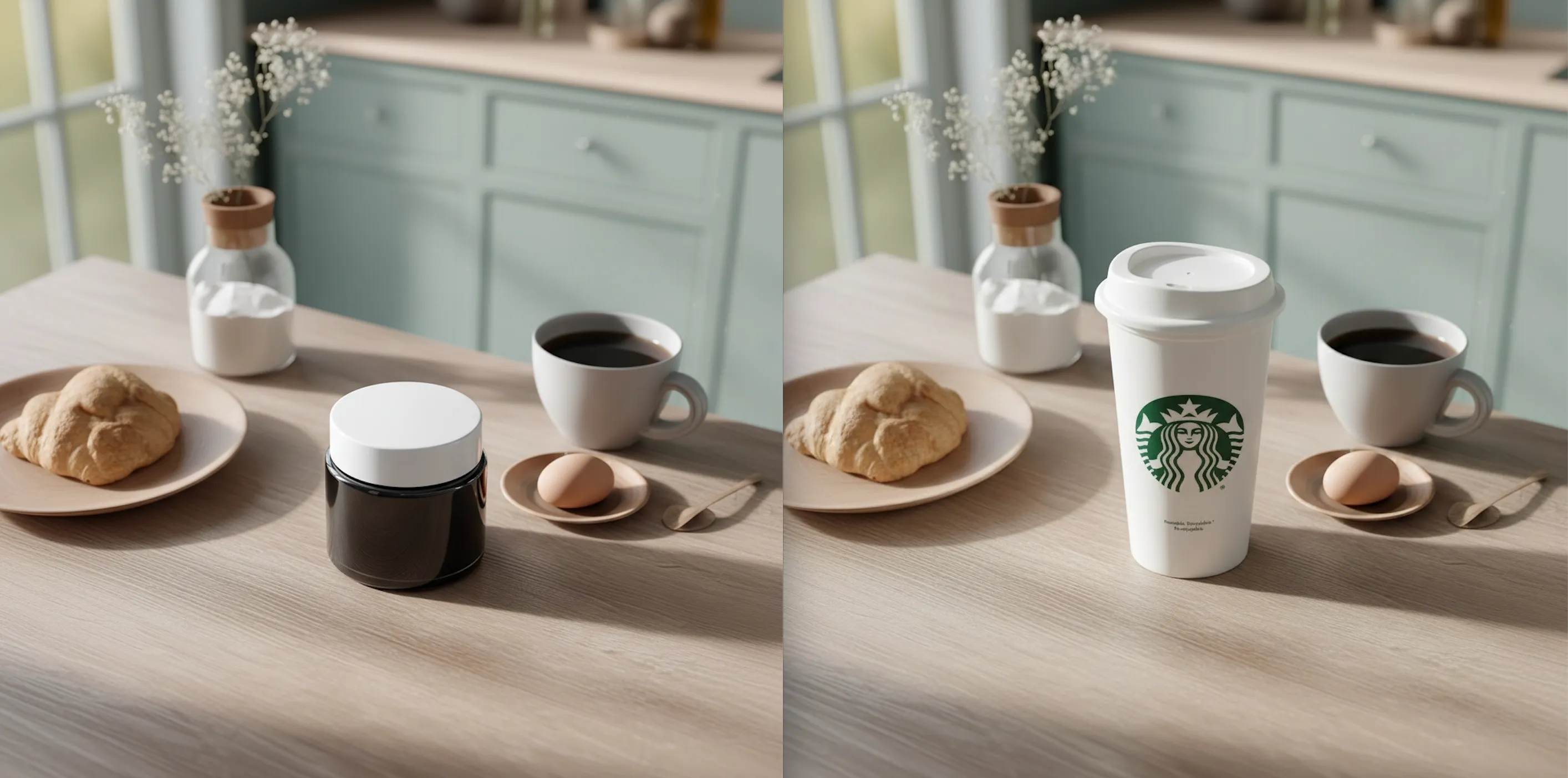
For the repeatable Product Photography path, create a Product, Nightjar's reusable record for one sellable item, from clear Product Photos. Add a factual description and physical dimensions when they clarify material, shape, or real-world scale. In Create, choose Product only, select a flat color or saved Background under Setting, and make the first approved image.
Next choose a Photography Style, the reusable direction for lighting, camera feel, mood, and color. Set Framing for the product-only camera angle, staging, and crop. On a flat color, also choose Shadow for the contact treatment under the product; this separate control is not available when a Background owns the scene and grounding.
Use Save as recipe to store the background choice, Photography Style, Framing, Shadow, Custom Directions, image count, aspect ratio, resolution, and output format, but not the Product. Select the next Product and apply the Recipe so the subject changes while the production direction remains reusable.
Does using the same background also keep framing and lighting consistent?
Using the same background does not by itself keep the catalog grid coherent. The Background controls the setting, Photography Style controls the photographic look and lighting direction, and Framing controls the product-only angle and crop. Keep all three stable when products should read as one shoot.
Scale and perspective need their own standard. Add Product Dimensions where available, use source photos near the intended camera angle, and state observable Custom Directions such as “front edge parallel to the frame” or “product fills about four-fifths of the image height.” For a mixed-size catalog, decide whether the grid should preserve relative physical scale or give every product similar visual occupancy; those are different goals.
How should I review same-background catalog images?
Review the first few products together before producing the full catalog. Check each image and the final grid:
- Product edges, fine cutouts, transparent areas, and reflective surfaces.
- Contact points, shadow direction, shadow density, and reflections against the chosen setting.
- Camera height, horizon, perspective, product rotation, crop, headroom, and visual occupancy.
- Product shape, color, texture, text, logos, included parts, and distinguishing details against the approved source.
- Aspect ratio, pixel dimensions, output format, and any crop applied by the storefront or marketplace.
Nightjar's built-in visual review can retry obvious failures at no extra Credit cost. Regenerate any outlier, then apply the Recipe to the remaining products.
Do platform image rules change the background choice?
Platform rules can determine whether the catalog needs a clean master image, a lifestyle image, or both. Check the destination's current requirements for background, product coverage, aspect ratio, resolution, format, overlays, and main versus additional images before generating the batch. For example, Google Merchant Center's current image guidance recommends a solid white or transparent background in most cases while also accepting clear staged or lifestyle images. A consistent background is a visual system, not proof that every file meets every channel's rules.
Consistent and on brand AI photoshoots, optimized for conversion.
Nightjar