Can I replace a product in an existing lifestyle photo with a new version using AI?
3 min read
Quick Answer
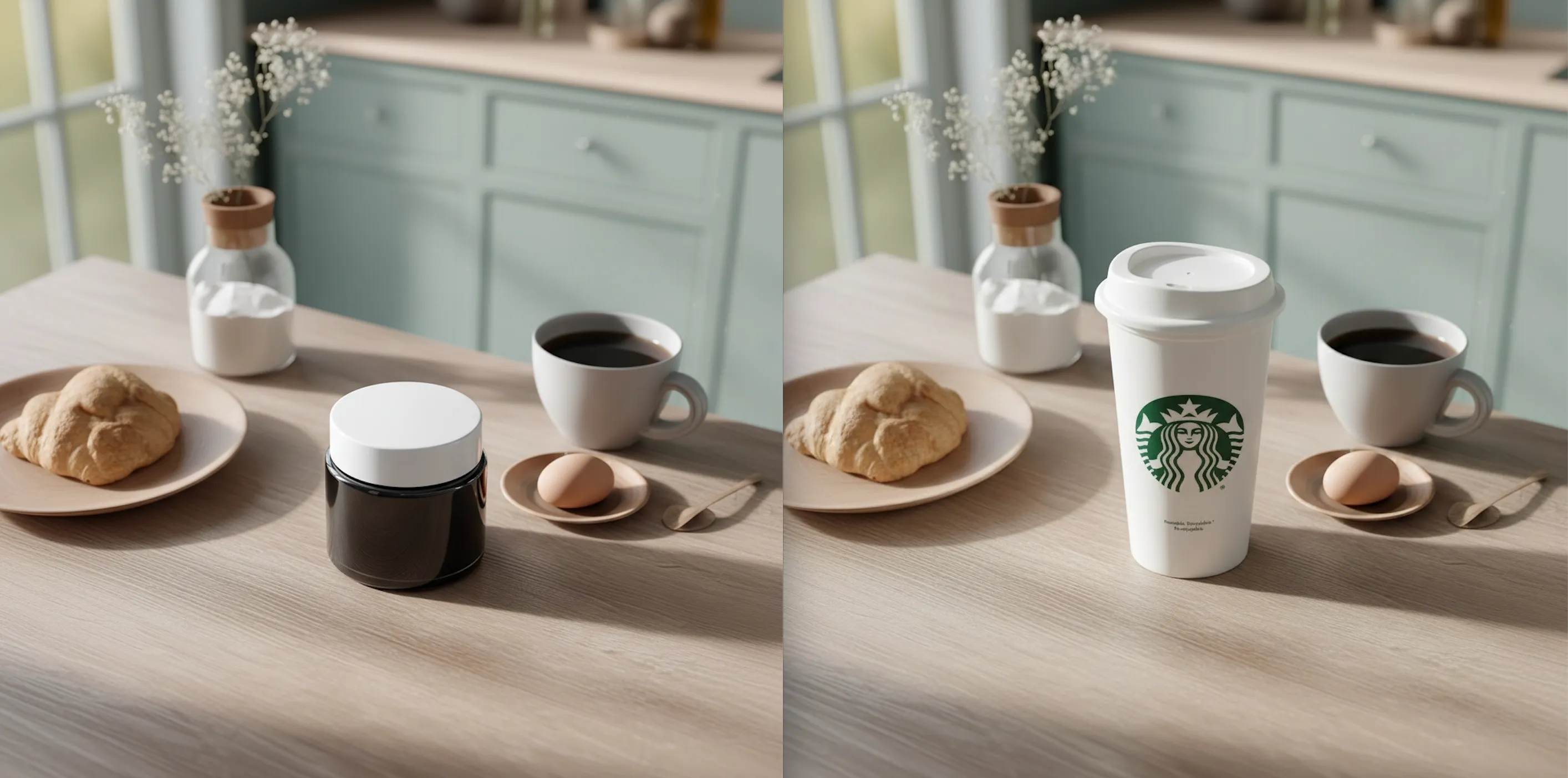
Yes. Use a generative product-placement edit when you have a clear photo of the new product and the existing lifestyle scene. Assign each source role explicitly, request the intended position and scale, then compare the result with the original before publishing.
How do I replace the product in Nightjar?
Nightjar provides Product Placement as an Edit Shortcut, a pre-filled instruction inside its multi-image Edit Images Workflow.
- In Edit, add the new product photo and the existing lifestyle photo to the Images to Edit board. Use a sharp product source that clearly shows its silhouette, material, label, logo, and the face that should remain visible. A source photographed near the scene's camera angle is easier to integrate convincingly.
- Choose Product Placement. It pre-fills
place the product from @image into the scene of @imagewith two unresolved image pills. Assign the new product to the first pill and the lifestyle photo to the second. The shortcut does not infer those roles from board order. - Add a precise replacement instruction, such as: "Replace the old jar in the model's right hand with the product from
@image1. Keep the same contact point, apparent height, orientation, hand position, crop, and background." - Match the original aspect ratio with
/ratio, choose JPEG, PNG, or WebP with/format, select the needed resolution, and generate. Keep the original photo for comparison.
Explicit @image references tell the editor which source supplies the product and which supplies the scene. Because Product Placement is a generative edit, check the areas around the replacement as well; a change outside the replacement area is called generative spill.
What should I check before using the edited lifestyle photo?
Review the output beside both source photos at normal display size and close zoom.
| Check | Reject or revise the image when |
|---|---|
| Geometry and scale | The silhouette, proportions, camera angle, or apparent size conflicts with the real product or surrounding objects. |
| Perspective and placement | The product's verticals, horizon, orientation, or contact point disagrees with the scene. |
| Occlusion and contact | Fingers, hair, props, or surfaces pass through the product, disappear incorrectly behind it, or leave it floating. |
| Light, shadow, and reflection | Highlight direction, contact shadow, cast shadow, color cast, or glossy reflections do not belong to the scene. |
| Text, logos, and version details | Lettering, marks, flavor names, package count, closures, colors, or distinguishing features differ from the approved product. |
| Generative spill | The model's face, hands, clothing, props, background, framing, or image quality changed outside the intended replacement. |
Nightjar's built-in visual review can retry obvious failures, including a missing or substituted product, a misspelled brand or product name, or a replaced main logo, without another user Credit.
How do I publish the edited lifestyle photo accurately?
Keep the original and edited versions separate, and describe comparisons accurately. Do not present a generated swap as an untouched photograph or imply a physical before-and-after that did not occur. If regulated label text must appear exactly as photographed, composite the approved product photo into the scene manually. Use only product, scene, artwork, logo, and likeness sources you are authorized to modify and publish; the U.S. Copyright Office notes that copyright owners control adaptation and public display of photographs, and stock or commissioned-image terms may add further limits.
Consistent and on brand AI photoshoots, optimized for conversion.
Nightjar