
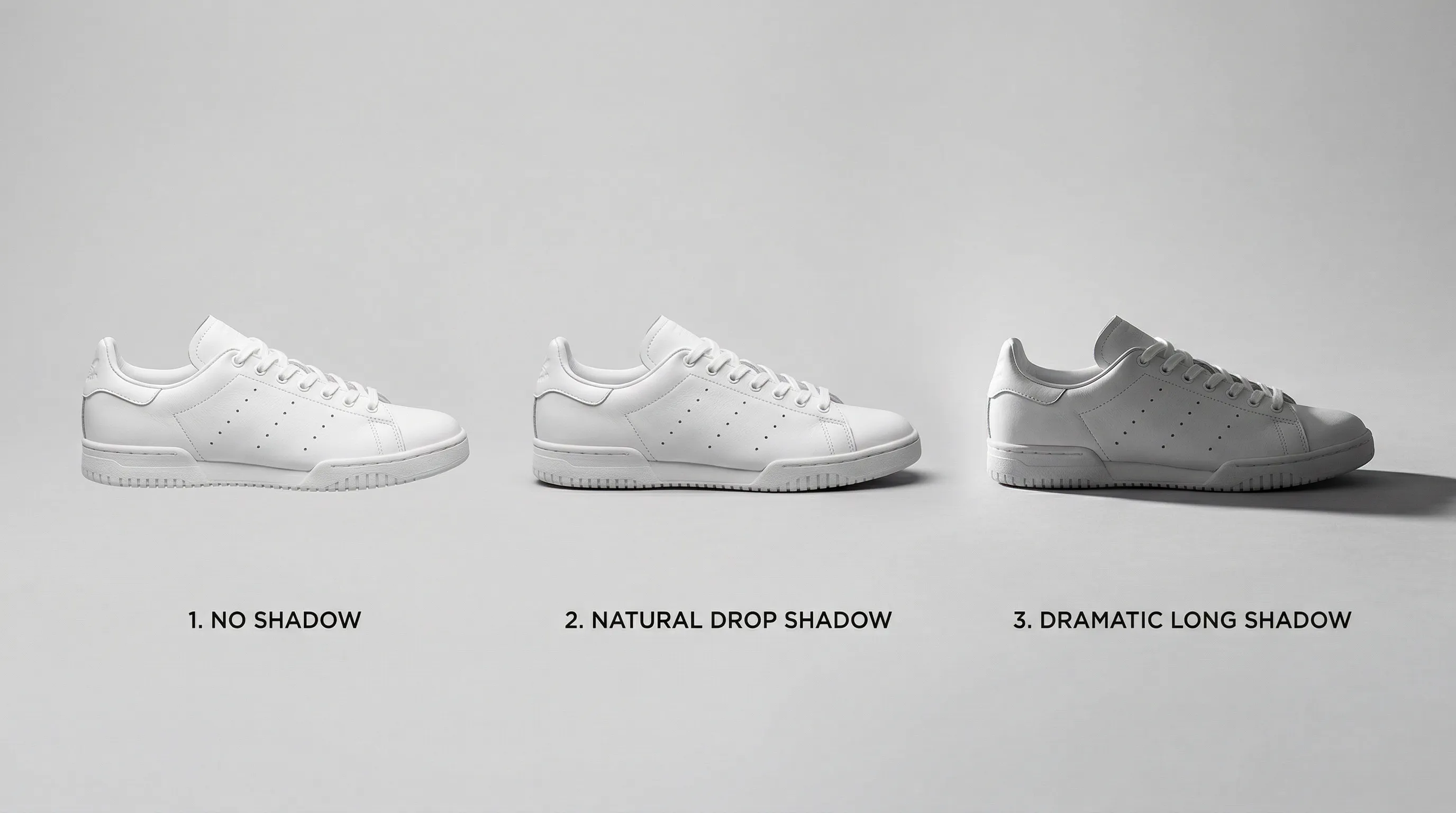
The Shadow Problem Every E-commerce Seller Faces
Shadows ground products in reality. Without them, your product floats against the background like a poorly composited stock image. With the wrong shadows, you signal amateur hour to every shopper who lands on your page.
The challenge runs deeper than knowing which Photoshop tool to click. Most tutorials explain how to remove or add shadows but never address when each approach makes sense. A jewelry seller might choose a reflection to suggest a polished surface. A furniture brand needs convincing contact with the floor. An Amazon seller has to distinguish main-image requirements from the creative freedom of supporting images. The platform, the product category, and your catalog size all dictate the right approach.
This matters beyond polish. A shadow can reveal shape, hide a seam or make a flat item appear raised. The goal is to make the product easier to understand without changing what the customer expects to receive.
Whether you need to clean up a listing background or add a convincing cast shadow to make furniture look grounded, this guide covers both the Photoshop techniques and faster alternatives for brands dealing with large catalogs.
When to Remove Shadows vs. When to Add Them
Before touching Photoshop, decide what your shadow strategy should be. This depends on where you sell and what you sell.
Platform Requirements Versus Creative Choices
| Platform | Rule or guidance to check | Shadow decision |
|---|---|---|
| Amazon | Main-image background and category requirements; pure white is the default main-image treatment | Do not treat a particular shadow opacity as a universal compliance rule |
| Shopify storefront | Your brand direction and theme; connected sales channels can impose separate rules | Choose shadows that explain shape and match the surrounding gallery |
| Etsy | Accurate item representation; its photo guide includes both studio and lifestyle images | Soft or hard light is a creative choice, not a blanket Etsy shadow ban |
| eBay | Its photo tips favor uncluttered neutral backgrounds; darker backgrounds can suit reflective items | Keep shadows from obscuring condition or important edges |
Amazon's photo guide points sellers to category requirements and permits shadow adjustments in lifestyle photos. It does not establish a numerical “minimal shadow” threshold. Check the applicable main-image rules before exporting; a white background alone does not make an image compliant.
For your own Shopify storefront, match the brand aesthetic while preserving a clear silhouette. Etsy's studio and lifestyle examples and eBay's photo tips are useful creative guidance, not interchangeable marketplace policies.
Which Shadow Type for Which Product Category
These are starting points, not requirements for every item in a category. A reflection is a mirrored image, technically distinct from a shadow.
| Shadow Type | Useful Starting Point | Watch Out For | Visual Effect |
|---|---|---|---|
| No shadow (pure white) | Simple packshots and white-background listings | Products that appear to float without a contact cue | Clean, isolated; still needs a platform check |
| Drop shadow | Flat-lay or simple cutout compositions | An offset silhouette that doesn't match the floor plane | Separation from the background |
| Reflection | Jewelry, tech gadgets, cosmetics on glossy surfaces | A reflection that contradicts the depicted surface | Polished-surface cue |
| Natural/cast shadow | Furniture, lifestyle and outdoor scenes | Direction or perspective inconsistent with the light | Grounded, dimensional |
| Soft diffused shadow | Beauty products, food, luxury goods | Edgy/bold branding | Elegant, subtle |
A watch on pure white can read as a clean technical packshot; a restrained reflection can give a glossy-surface treatment. A leather couch needs believable contact under its feet, not necessarily a uniform outline shadow. A handmade ceramic mug can benefit from soft natural light, while stronger directional light may better reveal its texture.
How to Remove Shadows in Photoshop (Step-by-Step)
Different shadows require different tools. Start on a duplicate layer so you can compare with the original. These methods target unwanted background shadows; do not erase the product's own shading indiscriminately or you may flatten its shape.
Using Content-Aware Fill for Large Shadow Areas
Best for uniform backgrounds with large shadow regions. Adobe's Content-Aware Fill guide explains selection and sampling controls.
- Select the shadow area using the Lasso Tool or Quick Selection Tool
- Go to Edit > Content-Aware Fill
- Adjust the sampling area in the preview (exclude the product itself)
- Click Apply
Inspect the preview around the product edge before accepting the fill.
Content-Aware Fill works well when your background is consistent. It struggles with textured backgrounds or shadows that overlap complex edges.
Clone Stamp Tool for Detailed Shadow Removal
Best for small areas requiring texture matching.
- Select the Clone Stamp Tool (S)
- Alt-click (Option-click on Mac) a clean area of your background
- Paint over the shadow, adjusting brush size as needed
- Work in small sections, resampling frequently to avoid repetitive patterns
Adobe's shadow-removal guide also covers cloning and healing when you need control over the replacement texture.
Match both texture and brightness when resampling; repeating a distinctive grain pattern can be more distracting than the original shadow.
Patch Tool for Quick Selection-Based Removal
Best for medium-sized shadows where you need quick results.
- Select the Patch Tool from the healing-tool group (J) and choose Content-Aware in its options
- Draw a selection around the shadow area
- Drag the selection to a clean area of your background
- Photoshop blends automatically
Adobe's Patch documentation describes the Structure and Color settings for controlling the blend.
Healing Brush for Edge Cleanup
Best for final touch-ups after using other tools.
The Healing Brush samples texture from a source area and blends it with the color and luminosity of your target area. Use it to smooth transitions left by other tools.
Check the cleaned edge at full size for halos or smeared texture.
Shadow Removal Tools Summary
| Tool | Best Use Case | Main Check |
|---|---|---|
| Content-Aware Fill | Large shadows on uniform backgrounds | Exclude the product from sampling |
| Clone Stamp Tool | Small detailed areas, texture matching | Avoid repeated texture patterns |
| Patch Tool | Medium shadows with a suitable clean source | Inspect brightness and texture blend |
| Healing Brush | Edge cleanup, minor shadow remnants | Avoid smearing the product boundary |
How to Add Shadows to Product Images in Photoshop
Adding shadows requires isolating your product first. Skip this step and Photoshop treats your entire image as the subject, producing unusable results.
Keep the original photo intact and work with a masked or isolated product layer. The effect follows that layer's visible shape; a rectangular background will create a rectangular shadow.
Isolating Your Product from the Background
Two main approaches:
Pen Tool (controlled paths): Trace firm product edges and convert the path to a mask. This suits smooth, defined outlines, but a hard path alone is not ideal for fur or translucency.
Object Selection Tool (faster): Click Select > Subject or use the Object Selection Tool. Photoshop's AI attempts to isolate your product automatically. Works well for clear edges, struggles with hair, fur, and transparent materials.
Adding Drop Shadow via Layer Styles
Once your product is on its own layer with a transparent background:
- Select the product layer
- Go to Layer > Layer Style > Drop Shadow
- Adjust these settings:
- Opacity: start low and increase until the shadow reads without overpowering the product
- Angle: Match your light source direction
- Distance: How far the shadow falls from the product
- Spread: Edge hardness
- Size: Blur amount
Keep the contact area close to the object; too much Distance can make it appear to hover.
A Layer Style is useful for simple cutouts and flat-lays. It still needs to agree with the light and surface. A standing object on a receding floor often needs a transformed cast shadow instead of an evenly offset silhouette.
Creating a Realistic Cast Shadow Manually
For hero images and marketing materials, a manual cast shadow looks more natural than Layer Styles.
- Duplicate the isolated product layer and place the duplicate below the product, above the background
- On the duplicate, choose Edit > Fill > Black and enable Preserve Transparency so only the product silhouette fills—not the entire layer
- Use Edit > Transform > Distort to lay that silhouette onto the surface, keeping its contact point attached to the product
- Apply Gaussian Blur to soften the edge; judge the radius at the final output size
- Lower opacity to match the scene and add a layer mask to fade the shadow farther from the product
- If needed, use a separate, tighter contact-shadow layer at the base so the object remains grounded
Adobe documents Preserve Transparency for filling only non-transparent pixels. The correct blur and opacity depend on image scale, surface and light—not a universal pixel or percentage setting.
Check the shadow against highlights on the product. They should describe the same light direction.
Adding Reflection Shadows for Luxury Products
Reflection shadows suggest your product sits on a polished surface. They work well for jewelry, tech products, and cosmetics.
- Duplicate your product layer
- Go to Edit > Transform > Flip Vertical
- Position the reflection directly below the product
- Add a layer mask; keep it white near the contact edge and fade to black farther away so the reflection disappears into the surface
- Reduce opacity until the reflection matches the surface; 20–40% can be a starting range, not a rule
A simple vertical flip is a starting construction, not a correct reflection for every three-dimensional object and camera angle. Do not show hidden surfaces or details the source cannot establish.
The Catalog Consistency Problem
The challenge is repeating a treatment without making every decision again.
Manual editing can introduce variation: shadow angle drifts, blur changes, contact points move. But Photoshop does support reuse. Save suitable Layer Styles or Actions and use File > Automate > Batch to run an Action across files. A shared template helps when products have similar scale, orientation and lighting. Different shapes still need inspection.
Do the math for an illustrative catalog:
100 SKUs x 6 images each = 600 images
If your own timed sample averages 20 minutes per image for shadow work, that is 200 hours. At an assumed $30–50/hour, the labor budget is $6,000–10,000. These are planning inputs, not a measured industry average. A repeatable Action may reduce the time; complex glass, fine legs or changed perspective may increase it.
An outsourced retoucher can also work to a reference and acceptance checklist. Request a quote for your actual files, revision scope and deadline instead of assuming a universal per-image price or turnaround.
AI Tools for Product Photo Shadow Editing
AI editing can replace some selection and painting work with a request, but time saved depends on how many results pass review. A background remover and a shadow editor are not the same operation: removing every contact cue can make an otherwise clean cutout float.
| Tool | Shadow Capabilities | Useful Fit | Review or Cost Boundary |
|---|---|---|---|
| Nightjar | Requested shadow edits; separate reusable Create setup | Sellers making both individual corrections and repeat product shots | Generation can change product details; include Credits, rejects and review |
| Photoshop | Masks, fill, cloning, Layer Styles, Actions and batch processing | Precise local control over existing pixels | Subscription plus editing skill and time |
| Fotor / LightX | Dedicated AI shadow-removal tools | Quick candidate corrections | Check current usage/export terms and the actual product edges |
| General image generators | Shadows as part of a generated scene | Creative treatments where generation is permitted | A plausible result is not proof of unchanged product detail |
| Outsourced retouching | Manual or assisted shadow work to a brief | Complex files or production overflow | Quote the scope, revisions and delivery date |
These are workflow differences, not a hands-on ranking of image quality or guaranteed time savings.
How Nightjar Handles Shadow Editing for E-commerce
Nightjar has an Edit tab where you add image references to a board and describe the change. Opening an existing image for editing starts with that image; it does not automatically carry over the Create Recipe or Photography Style.
For a specific correction, request something like “remove the long shadow on the background, retain a soft contact shadow under the base, and preserve the label and product shape.” Inspect the result beside the original. The request guides the generation; it is not a pixel lock or a guarantee that only the shadow changed.
The next 100 product shots are a different problem from correcting one existing file. In Create, the Shadow control is available for product-only shots with an explicitly selected flat-color Background. Its fixed choices include None, Soft contact, Hard, Long and Reflection. It is separate from overall lighting and is not a universal control for on-model or lifestyle scenes.
For a run of simple packshots, save the Shadow choice together with Framing, Background, Photography Style and supported output settings in a Recipe. Keep each Product's source photos and facts separately. That lets the next SKU start from the same production direction without rebuilding a shadow brief. A Photography Style can guide light and mood, but does not make different objects cast identical or automatically correct shadows.
Use Photoshop when you need to protect the source pixels and adjust a local mask precisely; use the saved Create setup when you are producing new candidate shots to a repeatable direction. Either route needs checks for contact, light direction, product fidelity and the destination's image rules. A 1:1 export alone does not establish marketplace compliance.
Related resources:
- How can I add shadows to my product photos using AI?
- How can I change the background color while retaining shadows?
- How to create consistent product catalog images
Preventing Shadow Problems During the Photoshoot
The best shadow edit is the one you never have to make.
A deliberate lighting setup can reduce post-production work. A few principles:
Use diffused light. Softboxes or large windows with sheer curtains create soft, manageable shadows. Direct flash or bare bulbs create harsh shadows that require heavy editing.
Light tents soften light for small products. These translucent enclosures wrap light around your product from all angles. Good for jewelry, cosmetics, and small electronics.
Use a key light and controlled fill. A starting setup is a light at roughly 45 degrees and a weaker fill or bounce card on the other side. Adjust the balance to reveal shape without creating distracting double shadows.
For detailed lighting guidance, see our article on light box product photography.
Frequently Asked Questions
How do I remove harsh shadows from product photos in Photoshop?
Use Clone Stamp for precise texture replacement, Patch for a selected region with a clean source, or Content-Aware Fill for a broad, simple background. Work on a duplicate and inspect the product boundary. Preserve useful shading on the product itself.
What type of shadow should I add to product images for e-commerce?
Start with the depicted surface and light. A soft contact shadow can ground a packshot, a cast shadow suits a dimensional scene, and a reflection requires a glossy surface. Category examples are creative starting points, not mandatory treatments.
Does Amazon allow shadows on product images?
Check the main-image rules for your category and marketplace. Pure white is the default main-image background; Amazon's public photo guide does not set a numerical shadow-opacity threshold. Secondary lifestyle images allow a different treatment, but must still represent the product accurately.
What is the difference between drop shadow and natural shadow?
Photoshop's Drop Shadow is a Layer Style derived from the layer's shape and offset using an angle and distance. A natural cast shadow comes from actual lighting; a manually constructed cast shadow imitates its perspective and falloff. Both must agree with the apparent surface and light.
Can AI remove shadows from photos automatically?
Tools including Nightjar, Fotor and LightX accept shadow-removal tasks. Inspect the actual result for changed labels, texture, edges and lost contact cues. No tool's capability description guarantees an unchanged product in every output.
How long does it take to add a shadow in Photoshop?
Time depends on isolation, geometry and the required finish. Applying a saved Layer Style is a different task from masking glass and constructing a cast shadow. Time a representative sample, include corrections, then estimate the catalog workload.
How do I maintain consistent shadows across my product catalog?
Document light direction, contact, softness and surface. Photoshop can reuse Layer Styles and batch Actions. Nightjar can save the eligible product-only Shadow setting in a Create Recipe; Edit is a separate request workflow. Review each shape rather than expecting one identical shadow to fit every product.
References
- Nightjar - Product photography and editing
- Adobe - Remove Shadows - Shadow-editing tools
- Adobe - Add Drop Shadow - Layer Style controls
- Adobe - Content-Aware Fill - Sampling and selection
- Adobe - Content-Aware Patch - Patch settings
- Adobe - Fill a Selection or Layer - Preserve Transparency
- Adobe - Batch Processing - Reusing Actions across files
- Amazon - Product Photos - Platform guidance and linked requirements
- Etsy - Seven Product Photo Types - Studio and lifestyle guidance
- eBay - Listing Photos - Background and item-clarity guidance